Monitoring and Observability, From Built-In to Best-of-Breed
SCOM, Prometheus, Grafana, and the Metrics That Matter

You built the cluster. You connected the storage. You migrated the VMs. Everything’s running.
Now how do you know it’s healthy at 3am?
Moving from “it works in the lab” to “it runs in production” isn’t about adding more VMs. It’s about proving your environment is healthy, knowing when it’s not, and understanding why before your users file a ticket. That requires observability , not a dashboard you glance at, but a system that collects, correlates, and alerts on the data your infrastructure produces.
That matters even more if you’re reading this series because VMware Cloud Foundation pricing forced a rethink, but Azure Local plus new validated hardware still doesn’t make financial sense. Hyper-V on hardware you already own only wins the business case if you can operate it with the same discipline you expected from the platform you left.
In this ninth post of the Hyper-V Renaissance series , and the first in the Production Architecture section , we’ll define what observability means for a Hyper-V environment, map the metrics and logs that matter, and walk through the monitoring platforms that fit on-premises deployments at every scale.
Repository: Monitoring scripts, Prometheus configurations, and Grafana dashboard JSON files are available in the series repository.
What Observability Actually Means
Observability isn’t a product you buy. It’s the ability to understand the internal state of a system by examining its external outputs. In infrastructure terms, it’s built on three pillars:
Metrics , quantitative measurements over time. CPU utilization at 85% for the last 15 minutes. Storage latency averaging 12ms. Memory pressure climbing toward 100. Metrics tell you what is happening and whether it’s within normal bounds.
Logs , discrete timestamped events with context. A live migration started at 14:32:07. A VM worker process threw an error. A cluster node lost quorum. Logs tell you why something happened and provide the forensic trail for root cause analysis.
Traces , the path of an operation across components. A live migration that traversed the migration network, touched storage, triggered CSV redirected I/O, and completed in 4.2 seconds. Traces tell you where time is spent and how components interact during complex operations.
For Hyper-V environments, these three pillars map to specific data sources:
| Pillar | Hyper-V Data Sources |
|---|---|
| Metrics | Hyper-V performance counters, cluster health metrics, storage latency/IOPS, network throughput |
| Logs | Hyper-V event log channels (VMMS, Worker, Config, StorageVSP, VmSwitch, High-Availability), Failover Clustering operational/diagnostic logs |
| Traces | Live migration event sequences, storage I/O path events, cluster failover event chains |
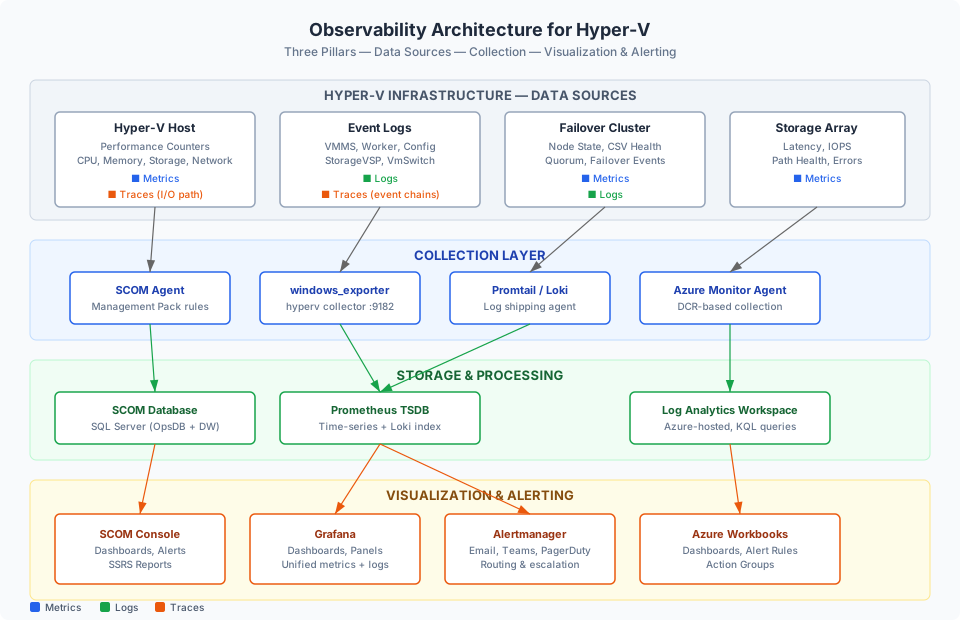
The rest of this post focuses on two questions: what data should you collect, and which platform should you use to collect it.
The Metrics That Matter
Not all performance counters are worth monitoring. Hyper-V exposes hundreds of counters across dozens of counter sets. Here are the ones that actually predict problems.
Host-Level CPU , The Hypervisor’s View
The Hyper-V Hypervisor Logical Processor counter set measures CPU from the hypervisor’s perspective , not from the Windows kernel, not from Task Manager. This distinction matters because Hyper-V runs underneath the operating system. The hypervisor sees the real picture; the OS only sees what the hypervisor allocates to it.
| Counter | What It Tells You |
|---|---|
% Total Run Time (_Total) | Overall host CPU utilization as the hypervisor sees it. This is the canonical CPU metric for a Hyper-V host. |
% Guest Run Time | How much CPU is consumed by VM workloads specifically. |
% Hypervisor Run Time | How much CPU the hypervisor itself consumes for scheduling, memory management, and I/O virtualization. Normally <5%. If this climbs, investigate oversubscription or misconfiguration. |
Why this matters: Task Manager on a Hyper-V host shows the root partition’s CPU usage, which includes the management OS but doesn’t accurately reflect total hypervisor load. Always use the hypervisor counters for the real number.
Per-VM CPU , Identifying the Noisy Neighbors
The Hyper-V Hypervisor Virtual Processor counter set gives you per-VM CPU usage at the virtual processor level:
| Counter | What It Tells You |
|---|---|
% Total Run Time (per VM:VP instance) | CPU utilization for each virtual processor in each VM. Sustained >90% means the VM needs more vCPUs or is genuinely CPU-bound. |
% Remote Run Time | Time spent running on a logical processor in a different NUMA node. High values indicate NUMA misalignment , the VM is crossing NUMA boundaries for CPU, which adds latency. |
Memory , The Pressure Model
Hyper-V dynamic memory uses a pressure model rather than simple used/free accounting. Understanding pressure is critical for capacity planning.
The Hyper-V Dynamic Memory Balancer counter set tells you about the host:
| Counter | What It Tells You |
|---|---|
Available Memory | Free memory on the host in MB. When this approaches zero, VMs will start getting squeezed. |
Average Pressure | The weighted average memory demand across all VMs. This is the single most important memory metric. At 100, the host is fully committed , every VM is getting exactly what it needs but there’s no headroom. Above 100, VMs are being denied memory requests. Below 80 is healthy. |
The Hyper-V Dynamic Memory VM counter set tells you about each VM:
| Counter | What It Tells You |
|---|---|
Current Pressure | This specific VM’s memory demand relative to its allocation. >100 means it’s asking for more than it has. |
Guest Visible Physical Memory | How much memory the guest OS believes it has. |
Physical Memory | How much memory Hyper-V has actually assigned to this VM. |
How dynamic memory negotiation works: Each VM reports its memory demand to the hypervisor via the Hyper-V Integration Services. The balancer evaluates all demands against available host memory and adjusts each VM’s allocation within its configured min/max range. When demand exceeds supply, VMs with lower priority settings get squeezed first. This is why the pressure metrics matter more than raw MB numbers , they tell you whether the negotiation is working or whether VMs are being starved.
Storage , Latency Is the Number That Matters
The Hyper-V Virtual Storage Device counter set provides per-VM storage metrics:
| Counter | What It Tells You |
|---|---|
Read Bytes/sec / Write Bytes/sec | Throughput per VM. Useful for capacity planning and identifying I/O-heavy VMs. |
Read Operations/sec / Write Operations/sec | IOPS per VM. The workload indicator. |
Latency | The most important storage metric. Measures the time for I/O operations to complete. <5ms is excellent. 5-10ms is normal. 10-20ms is worth investigating. >20ms is a problem for most workloads. Database servers and latency-sensitive applications will feel degradation above 10ms. |
Error Count | Any value >0 warrants investigation. Storage errors can indicate path failures, array issues, or MPIO problems. |
Network , Throughput and Drops
The Hyper-V Virtual Network Adapter counter set:
| Counter | What It Tells You |
|---|---|
Bytes/sec | Per-VM network throughput. Useful for identifying bandwidth hogs and capacity planning. |
Dropped Packets Incoming / Outgoing | Packets dropped due to buffer overflows, VLAN mismatches, or switch congestion. Any sustained drops indicate a configuration or capacity problem. |
VM Health Summary
The Hyper-V Virtual Machine Health Summary counter set provides a simple aggregate:
| Counter | What It Tells You |
|---|---|
Health Ok | Count of VMs reporting healthy status. |
Health Critical | Count of VMs reporting critical health. Any value >0 needs immediate attention. |
New in Windows Server 2025: CPU Jitter Counters
Windows Server 2025 introduces CPU jitter counters that measure variability in CPU processing times inside VMs. Traditional CPU utilization tells you how busy a processor is, but jitter tells you how consistent the performance is.
This matters for latency-sensitive workloads , databases, VoIP, real-time analytics, financial applications , where consistent 5ms response times are more important than average throughput. A VM showing 40% CPU utilization but high jitter may have worse application performance than a VM at 60% with low jitter.
Alert Threshold Reference
| Metric | Warning | Critical | Context |
|---|---|---|---|
| Host CPU (Logical Processor % Total Run Time) | >80% sustained 15min | >90% sustained 15min | Hypervisor-level, not Task Manager |
| VM CPU (Virtual Processor % Total Run Time) | >85% per VM | >95% per VM | May indicate vCPU oversubscription |
| Memory Average Pressure | >80 | >100 | 100 = fully committed, >100 = VMs being starved |
| Storage Latency | >10ms | >20ms | Workload-dependent; databases more sensitive |
| Storage Error Count | >0 | >0 sustained | Any errors warrant investigation |
| Network Dropped Packets | >0 sustained | >100/sec | Check VLAN config, switch buffers, NIC queues |
| VM Health Critical | >0 | >0 | Always investigate immediately |
| Cluster Node State != Up | Any node | Multiple nodes | Check cluster events, network, quorum |
| CSV State != Online | Any CSV | Multiple CSVs | Check storage paths, MPIO, array health |
Cluster-Level Metrics
Beyond individual host and VM metrics, monitor the cluster as a unit:
| What to Monitor | Why |
|---|---|
| Node state (Up, Down, Paused, Joining) | A node that’s not Up can’t host VMs , and if quorum is at risk, the entire cluster is at risk |
| Cluster Shared Volume state | CSVs that go offline or enter redirected I/O mode indicate storage path issues |
| Quorum health | Loss of quorum = cluster goes down. Monitor the witness and node votes |
| Cluster network state | Networks that go down affect live migration, storage traffic, or heartbeat depending on their role |
| Resource group state | Failed or Partially Online roles mean VMs or services aren’t running where they should be |
Log Architecture , What Events Tell You
Hyper-V writes to multiple event log channels, all under Applications and Services Logs > Microsoft > Windows > Hyper-V-*. Each channel covers a specific subsystem:
| Channel | Subsystem | What to Watch For |
|---|---|---|
Hyper-V-VMMS-Admin | VM Management Service | VM lifecycle events, configuration changes, service health. This is the primary operational log. |
Hyper-V-Worker-Admin | VM Worker Process | VM execution errors, state transitions (start/stop/crash), integration service issues. Critical for diagnosing VM failures. |
Hyper-V-Config-Admin | VM Configuration | Missing or corrupt VM configuration files. Rare but important. |
Hyper-V-StorageVSP-Admin | Storage Virtualization | Low-level storage operations , VHD mount/dismount errors, storage path failures. |
Hyper-V-VmSwitch-Operational | Virtual Switch | Port state changes, connectivity events, switch extension issues. |
Hyper-V-Hypervisor-Admin | Hypervisor | Hypervisor-level events , resource allocation, scheduling decisions, hardware-level issues. |
Hyper-V-High-Availability-Admin | Clustering/Migration | Live migration start/complete/fail events, VM failover triggers, placement decisions. Essential for troubleshooting migration failures. |
Hyper-V-VMSP-Admin | Security Processor | Secure Boot and TPM events for VMs. Relevant if you’re using vTPM (Post 10). |
Hyper-V-VID-Admin | Virtualization Infrastructure Driver | Memory allocation and partition management. Low-level, useful for deep troubleshooting. |
For failover clustering, monitor these additional channels:
Microsoft-Windows-FailoverClustering/Operational, cluster state changes, failover events, resource transitionsMicrosoft-Windows-FailoverClustering/Diagnostic, verbose diagnostic data (enable when troubleshooting, don’t leave on in production)
Centralizing Logs
Individual event logs on individual hosts don’t scale. For production, centralize logs using one of these approaches:
- Windows Event Forwarding (WEF): Built into Windows, free, uses WinRM. Configure source hosts to forward specific events to a collector server. Works well for moderate environments but requires careful subscription management at scale.
- SCOM agent collection: SCOM agents collect events as part of management pack monitoring rules. Events flow into the SCOM database and are correlated with performance data.
- Grafana Loki + Promtail: The open-source equivalent , Promtail agents ship logs to Loki, which indexes them alongside Prometheus metrics in Grafana.
- Azure Monitor Agent: Forwards events to a Log Analytics workspace for KQL-based querying.
Correlating Across Pillars
The real value of observability comes from correlation. Here’s an example:
Scenario: Users report a database application is slow.
- Metrics show the database VM’s storage latency spiked from 5ms to 35ms starting at 14:15.
- Logs on the host show a
Hyper-V-StorageVSP-Adminwarning about redirected I/O on the CSV at 14:14. - Cluster logs show the CSV owner node changed at 14:14 , another VM triggered a storage live migration that temporarily put the CSV into redirected I/O mode.
- Root cause: A planned storage migration of another VM caused temporary CSV redirected I/O, which increased latency for all VMs on that volume.
Without all three data sources (metrics, logs, cluster events), you’d be guessing. With them, you find the root cause in minutes.
Monitoring Platforms
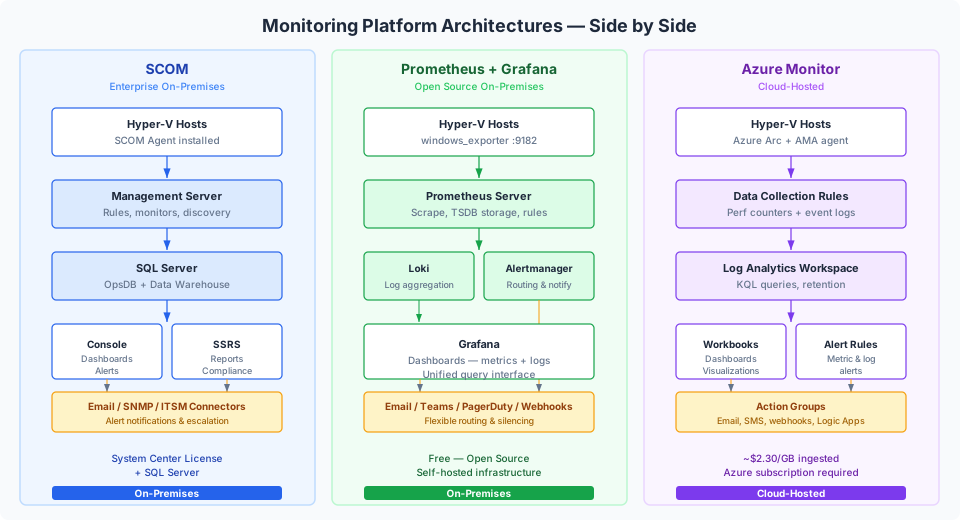
With the data sources mapped, let’s look at the platforms that collect, store, alert on, and visualize this data. We’ll cover the main approaches for on-premises Hyper-V environments, then touch on Azure-based options for organizations with cloud investment.
System Center Operations Manager
SCOM is Microsoft’s enterprise monitoring platform for on-premises infrastructure, and it remains the most deeply integrated monitoring solution for Windows Server and Hyper-V. If your organization runs System Center, SCOM is the natural home for Hyper-V monitoring.
What SCOM Provides
SCOM is agent-based and management-pack-driven. You deploy agents to your Hyper-V hosts, import the Hyper-V Management Pack, and SCOM automatically discovers your Hyper-V topology , hosts, VMs, clusters, virtual switches, storage , and begins monitoring.
The Hyper-V Management Pack monitors:
| Category | What It Discovers and Monitors |
|---|---|
| Host health | CPU, memory, disk, and network utilization at the host level. Service health for VMMS and related services. |
| VM health and state | VM operational state (running, stopped, saved, paused), heartbeat integration service status, health rollup from guest OS (if agent is installed in guest). |
| VM performance | Per-VM CPU, memory, disk I/O, and network throughput. Historical trending and anomaly detection. |
| Cluster health | Node state, quorum health, resource group state, failover events. |
| Storage health | CSV state, storage path health, capacity monitoring. |
| Network | Virtual switch health, network adapter state. |
| Topology discovery | Automatic discovery of the Hyper-V host → VM → cluster relationship. Topology views show which VMs run on which hosts in which clusters. |
SCOM doesn’t just collect data , it applies monitoring logic. The management pack includes predefined rules and monitors that evaluate thresholds, generate alerts, and roll up health state into a hierarchical view. A critical VM problem rolls up to its host, which rolls up to its cluster, giving you immediate visibility into where problems are and what’s affected.
SCOM 2025
SCOM 2025 is the latest release, building on SCOM 2022 with continued support for Windows Server 2025, updated management packs, and improvements to the web console. For Hyper-V monitoring specifically, the management pack catalog includes packs for Hyper-V 2025, Failover Clustering, and Storage Spaces.
Community Extensions
The GripMatix Hyper-V MP Extensions (Community Edition) adds deeper dashboards and performance views beyond what the standard management pack provides. It includes advanced views for host-to-VM resource mapping, capacity planning visualizations, and performance trending. Worth evaluating if SCOM is your primary monitoring platform.
SCOM Infrastructure Requirements
SCOM is not a lightweight tool. It requires its own infrastructure:
| Component | Requirement |
|---|---|
| Management Server | Dedicated Windows Server (or HA pair for larger environments) |
| SQL Server | Operational database + data warehouse database. SQL Server Standard or Enterprise. |
| Agents | Deployed to every monitored host (and optionally to guest VMs) |
| Web Console | For browser-based access to dashboards and alerts |
| Reporting | SQL Server Reporting Services for scheduled reports |
This is not a trivial footprint. For a 10-host Hyper-V cluster, SCOM adds 2-3 additional servers (management server, SQL, reporting). The return on that investment is integrated, enterprise-grade monitoring with alerting, reporting, compliance audit trails, and integration across the entire System Center suite.
When SCOM Makes Sense
- Medium to large environments (10+ hosts, 100+ VMs) where the management overhead is justified
- Organizations with existing System Center investment , SCVMM, SCCM, and SCOM together provide a unified management and monitoring plane
- Compliance requirements , SCOM provides audit-ready reporting and historical data retention
- Windows-centric shops , teams whose expertise is in Microsoft tooling, not open-source
When SCOM Is Overkill
- Small environments (2-4 hosts) where the infrastructure cost of SCOM exceeds its monitoring value
- Teams without SQL Server expertise to manage the SCOM databases
- Organizations that prefer open-source or already have investment in Prometheus/Grafana
- Budget-constrained deployments , SCOM requires System Center licensing
Integration with SCVMM
When SCOM and SCVMM are deployed together, SCOM gains additional context from SCVMM’s fabric management , cloud assignments, service templates, and placement groups. SCVMM’s PRO (Performance and Resource Optimization) tips use SCOM performance data to recommend or automatically execute VM migrations for load balancing. This integration is covered further in Post 11: Management Tools for Production.
Prometheus + Grafana , On-Premises Open Source
For organizations that prefer open-source tooling, or teams with DevOps and SRE backgrounds, the Prometheus + Grafana stack provides a powerful, self-hosted observability platform with zero licensing costs and complete data ownership.
Why This Stack Works for Hyper-V
Prometheus was designed for monitoring infrastructure. Grafana was designed for visualizing time-series data. Together, they provide:
- No licensing costs , fully open-source, self-hosted
- No cloud dependency , runs entirely on-premises
- Massive community , thousands of exporters, dashboards, and integrations
- Flexible architecture , scales from a single Prometheus instance to a federated multi-site deployment
- Mixed-infrastructure support , monitors Windows, Linux, network devices, storage arrays, and applications with the same platform
The windows_exporter , Bridging Windows and Prometheus
The critical piece that makes Prometheus work for Hyper-V is windows_exporter (formerly wmi_exporter). This is the official Prometheus exporter for Windows metrics, maintained by the Prometheus community.
The exporter includes a dedicated hyperv collector that exposes all Hyper-V performance counters as Prometheus metrics. Every counter set we discussed in the metrics section is available:
| Sub-Collector | Metrics Exposed |
|---|---|
hypervisor_logical_processor | Host CPU utilization as the hypervisor sees it |
hypervisor_virtual_processor | Per-VM virtual processor utilization |
dynamic_memory_balancer | Host-level memory pressure and availability |
dynamic_memory_vm | Per-VM memory demand, allocation, and pressure |
virtual_storage_device | Per-VM storage latency, IOPS, throughput, errors |
virtual_network_adapter | Per-VM network throughput and dropped packets |
virtual_machine_health_summary | Aggregate VM health counts |
virtual_switch | Virtual switch throughput and packet statistics |
All metrics are prefixed with windows_hyperv_* and include labels for VM name, adapter name, and other instance identifiers , making it straightforward to build per-VM, per-host, and cluster-wide dashboards in Grafana.
Important: The hyperv collector is not enabled by default. You must explicitly enable it when installing or configuring windows_exporter. On a machine without the Hyper-V role, enabling this collector will cause errors.
Architecture
The deployment model is straightforward:
- windows_exporter runs as a Windows service on each Hyper-V host, exposing metrics on a configurable HTTP port (default 9182)
- Prometheus scrapes metrics from each exporter at a configured interval (typically 15-30 seconds)
- Grafana queries Prometheus and renders dashboards with real-time and historical views
- Alertmanager evaluates Prometheus alerting rules and routes notifications to email, Microsoft Teams, PagerDuty, or any webhook-compatible target
For log collection, Grafana Loki with Promtail agents complements Prometheus metrics , giving you a unified observability stack where metrics and logs are correlated in the same Grafana interface using the same label-based query model.
Key Dashboard Panels
A production Grafana dashboard for Hyper-V should include:
| Panel | Data Source | Purpose |
|---|---|---|
| Host CPU Overview | windows_hyperv_hypervisor_logical_processor_total_run_time_percent | Time-series graph showing CPU across all hosts, with warning/critical threshold lines |
| Per-VM CPU Top-N | windows_hyperv_hypervisor_virtual_processor_total_run_time_percent | Table or bar chart of the top 10 busiest VMs , your noisy neighbor detector |
| Memory Pressure Heatmap | windows_hyperv_dynamic_memory_balancer_average_pressure | Heatmap across hosts showing memory pressure over time , highlights overcommitted hosts |
| Storage Latency by VM | windows_hyperv_virtual_storage_device_latency_seconds | Time-series per VM , latency spikes are immediately visible |
| Network Throughput | windows_hyperv_virtual_network_adapter_bytes_total | Per-VM network throughput for identifying bandwidth saturation |
| VM Health Summary | windows_hyperv_virtual_machine_health_summary_health_critical | Single-stat panel , should always be zero |
| Cluster Node Status | Collected via os and service collectors | Node up/down status based on exporter reachability |
Tip: The series companion repository includes a complete Grafana dashboard JSON file with all of these panels preconfigured. Import it into your Grafana instance and point it at your Prometheus data source.
Alerting with Alertmanager
Prometheus alerting rules evaluate conditions continuously and fire alerts through Alertmanager. Essential alerts for Hyper-V:
| Alert | Condition | Severity |
|---|---|---|
| Host CPU Critical | >90% for 15 minutes | Critical |
| Memory Pressure Overcommit | Average Pressure >100 for 5 minutes | Critical |
| Storage Latency High | >20ms for 10 minutes | Warning |
| VM Health Critical | Health Critical count >0 | Critical |
| Storage Errors | Error count >0 | Critical |
| Exporter Down | Unreachable for 2 minutes | Critical |
Alertmanager supports routing to email, Microsoft Teams (via webhook), PagerDuty, OpsGenie, Slack, and any generic webhook endpoint. Configure escalation policies so critical alerts reach on-call staff immediately while warnings queue for business-hours review.
When This Stack Fits
- Teams with DevOps or SRE experience comfortable with Prometheus, Grafana, and YAML configuration
- Mixed-infrastructure environments monitoring Linux, Windows, containers, and network devices alongside Hyper-V
- Organizations that value open-source and want full control over their monitoring data
- Budget-conscious deployments where SCOM licensing isn’t justified
- Cloud-avoidant environments where all data must stay on-premises
Azure-Based Monitoring Options
For organizations with existing Azure investment, several Azure services extend monitoring to on-premises Hyper-V hosts. These are worth knowing about, but they introduce cloud dependency and ongoing costs. If your deployment philosophy is on-premises-first, treat these as supplementary options , not your primary monitoring platform.
Cross-reference: For a deeper look at selective Azure integration , including Azure Backup, Azure Site Recovery, and Azure Update Management , without committing to full cloud dependency, see Post 17: Hybrid Without the Handcuffs.
Azure Monitor + Log Analytics
Install the Azure Arc agent to enroll each Hyper-V host as an Arc-enabled server (free), then deploy the Azure Monitor Agent (AMA) as an extension. Data Collection Rules (DCRs) define which performance counters and event logs to collect, and data flows to a Log Analytics workspace where you query with KQL, build workbooks, and configure alert rules.
This gives you centralized, cloud-hosted monitoring with managed alerting and long-term retention , without running your own monitoring infrastructure. The trade-off is per-GB ingestion cost and Azure connectivity dependency.
Azure-Managed Grafana
A hosted Grafana instance that can query both Azure Monitor data and on-premises Prometheus instances. Interesting for organizations that want Grafana dashboards without self-hosting, and want to correlate cloud and on-prem data in a single view.
SCOM Managed Instance (SCOM MI)
For organizations that want SCOM’s management packs and monitoring logic without managing the SCOM infrastructure, SCOM Managed Instance runs the SCOM management plane in Azure while monitoring on-premises servers via agents. Same deep Hyper-V integration, Azure-managed backend.
Cost Considerations
| Service | Cost |
|---|---|
| Azure Arc enrollment | Free |
| Azure Monitor Agent | Free |
| Log Analytics ingestion (pay-as-you-go) | ~$2.30/GB |
| Log Analytics (Basic Logs tier) | ~$0.50/GB |
| Commitment tiers (100+ GB/day) | $1.61–$1.96/GB |
| Alert rules | $0.10/month per rule (first metric alert free) |
A 10-host cluster collecting performance counters and event logs typically generates 2-5 GB/day, translating to roughly $140-350/month at pay-as-you-go rates. Commitment tiers reduce this at scale.
The Free Baseline , Built-In Windows Tools
Regardless of which monitoring platform you choose, every Hyper-V environment should use the built-in tools for troubleshooting and ad-hoc analysis. These aren’t monitoring solutions , they’re investigative tools.
Performance Monitor (perfmon): The most granular metrics tool available on Windows. Use it for deep-dive troubleshooting, establishing performance baselines, and validating counter behavior. Create Data Collector Sets for ongoing collection when diagnosing intermittent issues. Not suitable as a standalone monitoring platform , no centralization, no alerting, limited retention.
Event Viewer: The log viewer for all Windows event channels. Use it for investigating specific incidents after an alert fires. Not suitable for proactive monitoring , it’s reactive by nature.
PowerShell: Get-Counter for real-time counter sampling, Get-WinEvent for event log queries, Measure-VM for resource metering (requires Enable-VMResourceMetering), and the FailoverClusters module for cluster health (Get-ClusterNode, Get-ClusterSharedVolume, Get-ClusterGroup). PowerShell is excellent for scripted health checks and capacity reports that run on a schedule. Example scripts are in the companion repository.
Windows Admin Center: WAC provides a simple, free web interface that shows basic host and VM metrics in real-time. It’s useful for a quick health glance when you’re already in WAC for management tasks, but it is not a monitoring platform , there’s no historical retention, no alerting, and no log correlation. WAC is covered in detail in Post 11: Management Tools for Production.
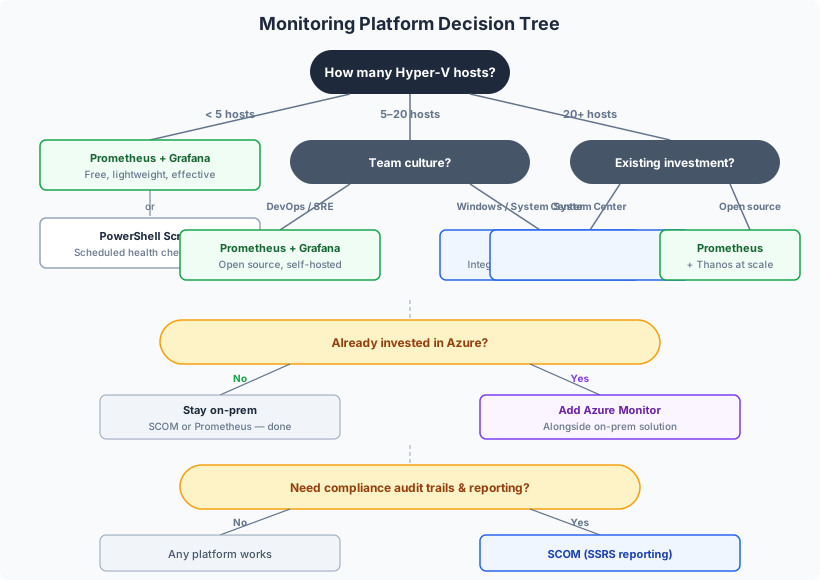
Choosing Your Monitoring Platform
| Factor | SCOM | Prometheus + Grafana | Azure Monitor |
|---|---|---|---|
| Cost | System Center license + SQL Server | Free (self-hosted infrastructure) | Pay-per-GB ingestion |
| Infrastructure | Management server, SQL, agents | Prometheus server, Grafana server, exporters | Azure Arc agent, cloud-hosted |
| Hyper-V integration | Dedicated management pack with deep topology discovery | windows_exporter hyperv collector | Performance counters via AMA + DCRs |
| Alerting | Built-in with email, SNMP, connectors | Alertmanager with flexible routing | Azure alert rules with action groups |
| Reporting | SSRS-based scheduled reports | Grafana reporting or PDF exports | Azure Workbooks |
| Log management | Agent-based event collection with correlation | Loki + Promtail | Log Analytics + KQL |
| Scale | Enterprise (thousands of hosts) | Large (with Thanos or federation) | Cloud-scale (pay-per-use) |
| Team expertise | Windows / System Center | DevOps / SRE / open-source | Azure / cloud-native |
| Data sovereignty | On-premises | On-premises | Cloud (Azure region) |
| Best for | Windows-centric enterprises with System Center | DevOps teams, mixed infrastructure, budget-conscious | Azure-invested organizations |
Quick Decision Guide
- Already have System Center? → SCOM. The Hyper-V integration is deep and the investment is already made.
- DevOps/SRE team, mixed Linux+Windows? → Prometheus + Grafana. One platform for everything, zero licensing.
- Small environment, minimal budget? → Prometheus + Grafana (it’s free) or PowerShell scripts with scheduled health checks as a starting point.
- Heavy Azure investment, compliance needs? → Azure Monitor, possibly alongside an on-prem solution.
- Compliance requires monitoring audit trails? → SCOM (built-in SSRS reporting) or Azure Monitor (managed retention policies).
- Want cloud-managed without self-hosting? → Azure-managed Grafana or SCOM Managed Instance.
There’s no wrong answer as long as you’re actually monitoring. The worst monitoring platform is the one you never deploy.
Capacity Planning , Using Monitoring Data
Monitoring isn’t just about fire-fighting. The historical data your monitoring platform collects is the foundation for capacity planning.
What to trend over time:
- Host CPU utilization averages and peaks by time of day and week
- Memory pressure trends , is Average Pressure climbing month-over-month?
- Storage latency patterns , are they degrading as data grows?
- VM count growth rate , how quickly are you consuming headroom?
When to act:
- Host CPU averaging >60% during business hours → plan for additional compute within 3-6 months
- Memory Average Pressure consistently >70 → you’re approaching the commitment ceiling
- Storage latency trending upward → engage your storage team before it becomes a performance problem
- N+1 capacity lost → if losing one node would overload the remaining nodes, add capacity now
Resource metering for chargeback: If your organization does internal chargeback or showback for VM resources, Measure-VM (after enabling Enable-VMResourceMetering) provides per-VM resource consumption data , average CPU in MHz, average and peak memory in MB, total disk allocation, and network traffic by direction. These numbers feed directly into chargeback reports. Example scripts for capacity baseline collection and reporting are in the companion repository.
Next Steps
With monitoring and observability in place, you have the data to prove your environment is healthy , and the alerts to tell you when it’s not. But observability is only as good as the security posture underneath it. In the next post, Post 10: Security Architecture for Hyper-V Clusters, we’ll build a layered security architecture from host hardening through VM isolation, covering Credential Guard, SMB encryption, VBS, vTPM, and an honest assessment of Shielded VMs.
You can see what’s happening now. Time to make sure it stays that way.
Resources
- Series Repository: github.com/thisismydemo/hyper-v-renaissance
Microsoft Documentation
- Detecting bottlenecks in a virtualized environment
- CPU jitter counters in Windows Server 2025
- Hyper-V Event Log channels
- SCOM 2025 Management Pack catalog
- SCOM Managed Instance overview
- Azure Monitor Agent overview
- Azure Monitor pricing
- Measure-VM cmdlet reference
Open Source
- windows_exporter , Prometheus exporter for Windows
- windows_exporter hyperv collector
- Prometheus , Monitoring and alerting toolkit
- Grafana , Observability platform
- Grafana Loki , Log aggregation
Community
Series Navigation ← Previous: Post 8 , POC Like You Mean It → Next: Post 10 , Security Architecture for Hyper-V Clusters