PowerShell Automation Patterns (2026 Edition)
DSC v3, Idempotent Modules, and CI/CD for Infrastructure
“PowerShell Returned to Its Throne” isn’t just a series tagline. It’s the architectural reality.
Every post in this series has used PowerShell for configuration, validation, and management. But there’s a difference between running scripts manually and building an automation practice. If you’re honest with yourself, most of us do the same thing: write a script, run it, tweak something, run it again, save it in a folder called “scripts-final-v3-FINAL,” and hope we remember the parameters next quarter.
That works for a lab. It doesn’t work for production.
In VMware, you had Host Profiles for consistent configuration, vCenter templates for repeatable provisioning, and Update Manager for orchestrated patching. The PowerShell equivalent isn’t a single tool , it’s a set of patterns that, when combined, give you the same consistency and repeatability, with more flexibility and zero additional licensing cost.
This post builds that practice. We’ll cover why each pattern matters, how the pieces connect, and how to grow from “I run scripts manually” to “my infrastructure is version-controlled and pipeline-driven.”
Repository: The complete module, DSC configurations, CI/CD pipeline examples, and variable templates are in the series repository.
The Problem , Why Manual Scripts Break Down
Picture this: you build a two-node cluster following Post 5. You write a deployment script with IP addresses, VLANs, and hostnames baked into it. Six months later, you need to add a third node. You pull up the script, change the variables, run it , and it fails because someone manually changed the VLAN on node 2 and your script expects the old configuration. You spend two hours debugging.
Or worse: you need to build a second cluster at another site. You copy the script, find-and-replace the IPs, miss one, and the storage VLAN gets assigned the management subnet. Three hours of troubleshooting later, you find the typo.
These aren’t hypothetical. They’re the daily reality of manual scripting. The patterns in this post solve three specific problems:
- Configuration drift , the environment changes after deployment and nobody updates the scripts
- Hardcoded values , scripts that work for one environment but break when copied to another
- Fear of running , scripts that are destructive if run twice, so you’re afraid to re-run them
The Architecture , Four Layers
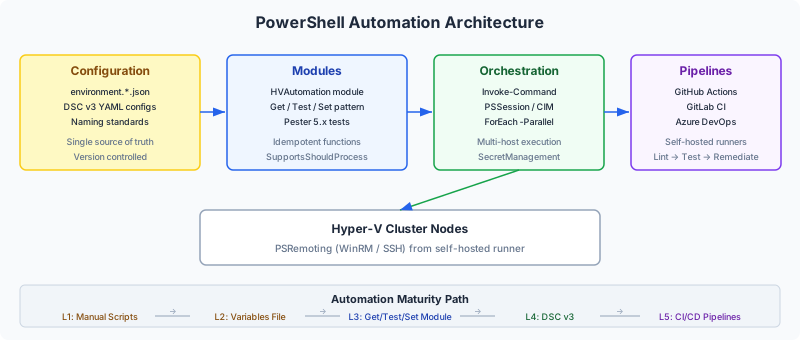
| Layer | What It Solves | VMware Equivalent |
|---|---|---|
| Configuration | Hardcoded values → centralized variables file | Host Profiles, vCenter settings |
| Modules | Destructive scripts → idempotent Get/Test/Set functions | N/A (PowerCLI was always scripting) |
| DSC | Configuration drift → declarative desired state | Host Profiles (closest equivalent) |
| Pipelines | Manual execution → CI/CD-triggered automation | Update Manager (for patching orchestration) |
You don’t need all four layers on day one. Start with Configuration (a variables file) and grow. Each layer builds on the previous one.
PowerShell 7 , The Runtime
All automation in this framework targets PowerShell 7.4+ LTS. On Windows Server 2025, both the Hyper-V module (~245 cmdlets) and the FailoverClusters module (~90 cmdlets) run natively in PowerShell 7 , no compatibility shims, no -UseWindowsPowerShell fallback required.
Why this matters: PowerShell 5.1 is in maintenance mode , no new features, only security fixes. PowerShell 7 gives you ForEach-Object -Parallel for multi-host operations, better error handling, ternary operators for cleaner code, and cross-platform capability (your automation scripts can run from a Linux management station).
Every script in the companion repository starts with #Requires -Version 7.0 to enforce the runtime.
Layer 1: Configuration , The Variables File
The simplest and most impactful change you can make to your scripting practice is separating configuration from code. Instead of hardcoding 10.10.10.11 in line 47 of your deployment script, you put it in a JSON file and your script reads it.
Why This Matters
A variables file means:
- One script, many environments. The same deployment script works for production, dev, and DR , you just point it at a different variables file.
- No find-and-replace. When you build a new site, you create a new JSON file. You don’t touch the scripts.
- Version control. Your configuration lives in Git alongside your scripts. You can diff changes, review in pull requests, and roll back mistakes.
- Parameter overrides. CI/CD pipelines can inject values at runtime without modifying files.
Structure
The companion repository includes environment templates in variables/:
{
  "environment": {
    "name": "prod",
    "site": "sea01",
    "domain": "yourdomain.local"
  },
  "naming": {
    "hostPrefix": "hv-host",
    "clusterPrefix": "cl-hvhost",
    "vmPrefix": "vm",
    "switchName": "vsw-set-prod"
  },
  "network": {
    "management": { "vlanId": 10, "subnet": "10.10.10.0/24", "gateway": "10.10.10.1" },
    "migration":  { "vlanId": 20, "subnet": "10.10.20.0/24" },
    "storage":    { "vlanId": 30, "subnet": "10.10.30.0/24" }
  },
  "cluster": {
    "name": "cl-hvhost-prod-sea01",
    "ip": "10.10.10.20",
    "nodes": [
      { "name": "hv-host-prod-sea01-001", "managementIp": "10.10.10.11" },
      { "name": "hv-host-prod-sea01-002", "managementIp": "10.10.10.12" }
    ]
  }
}
Your scripts load it with one line: $Config = Get-Content ./variables/environment.prod.json | ConvertFrom-Json. Every subsequent line references $Config.network.management.vlanId instead of a magic number.
Naming Standards , CAF/WAF for On-Prem
The variables file enforces naming conventions based on Microsoft’s Cloud Adoption Framework pattern: <type>-<workload>-<environment>-<site>-<instance>.
| Resource | Convention | Example |
|---|---|---|
| Hyper-V host | hv-<role>-<env>-<site>-<###> | hv-host-prod-sea01-001 |
| Cluster | cl-<workload>-<env>-<site> | cl-hvhost-prod-sea01 |
| VM | vm-<workload>-<env>-<site>-<###> | vm-sql-prod-sea01-001 |
| Virtual switch | vsw-<purpose> | vsw-set-prod |
| CSV volume | csv-<tier>-<###> | csv-tier1-001 |
Why bother? Because six months from now, when you’re looking at a list of 200 VMs, vm-sql-prod-sea01-001 tells you everything , it’s a SQL server, it’s production, it’s in the Seattle datacenter, it’s the first instance. SQLServer1 tells you nothing about environment, location, or naming collision risk.
NetBIOS constraint: Hostnames max out at 15 characters. Plan your abbreviations accordingly , hv-host-prod-sea01-001 is 22 characters (too long). Shorten to hvhp-sea01-001 (14 characters) for the actual hostname, and use the full convention for display names and tags.
Layer 2: Modules , The Get/Test/Set Pattern
This is where most automation practices level up. Instead of writing one long script that configures everything and breaks if you run it twice, you build a PowerShell module with small, focused functions that follow the Get/Test/Set pattern.
What Get/Test/Set Means
Every configuration function has three variants:
- Get- answers: “What is the current state?” It reads the environment and returns what it finds.
- Test- answers: “Does the current state match the desired state?” It compares what exists against what the variables file says should exist, and returns
$trueor$false. - Set- answers: “Make it match.” It applies the desired state , but only after calling Test first. If Test returns
$true(everything’s already correct), Set does nothing.
This is idempotency , the function is safe to run 1 time or 100 times. It checks before it acts. It never destroys something that’s already correct in order to recreate it.
Why This Matters
Consider the difference:
Without Get/Test/Set (typical script):
# This breaks if the switch already exists
New-VMSwitch -Name "SET-Switch" -NetAdapterName "NIC1","NIC2" -EnableEmbeddedTeaming $true
# This breaks if the vNIC already exists
Add-VMNetworkAdapter -ManagementOS -SwitchName "SET-Switch" -Name "Management"
Run this script twice and it fails with “A virtual switch with the same name already exists.” Now you have to add error handling, or wrap everything in if (-not (Get-VMSwitch ...)) blocks scattered throughout a 200-line script.
With Get/Test/Set (module function):
# Test-HVNetworkState checks everything and returns true/false
if (Test-HVNetworkState -Config $Config) {
    Write-Host "Network already in desired state. No changes needed."
} else {
    Set-HVNetworkState -Config $Config  # Only changes what's wrong
}
Run this 100 times. The first time, it creates the switch and vNICs. The next 99 times, it checks, finds everything correct, and does nothing. No errors, no duplicates, no damage.
The Module Structure
The companion repository includes the HVAutomation module:
modules/HVAutomation/
  HVAutomation.psd1              # Module manifest ,  declares what's exported
  HVAutomation.psm1              # Loader ,  dot-sources Public and Private folders
  Public/
    Get-HVHostState.ps1          # What roles/features are installed?
    Test-HVHostState.ps1         # Do they match the config?
    Set-HVHostState.ps1          # Install what's missing
    Get-HVNetworkState.ps1       # What switches/vNICs/VLANs exist?
    Test-HVNetworkState.ps1      # Do they match the config?
    Set-HVNetworkState.ps1       # Create/configure what's wrong
    New-HVClusterVM.ps1          # Create a VM following naming standards
  Private/
    Import-HVConfig.ps1          # Load and validate the variables file
    Resolve-HVNamingConvention.ps1  # Generate names from config
  Tests/
    HVAutomation.Tests.ps1       # Pester 5.x tests
Every public function uses [CmdletBinding(SupportsShouldProcess)], which means you can run any Set function with -WhatIf to see what it would change without actually changing anything. This is invaluable for production , preview the changes before committing them.
Walking Through a Real Workflow
Here’s how the module works in practice for deploying a new cluster node:
# 1. Load the config
Import-Module ./modules/HVAutomation/HVAutomation.psd1
$Config = Import-HVConfig -Path ./variables/environment.prod.json

# 2. Check current state (what's there now?)
Get-HVHostState -Config $Config -NodeName "hv-host-prod-sea01-003"
# Returns: Hyper-V installed, Clustering installed, MPIO missing

# 3. Test desired state (does it match?)
Test-HVHostState -Config $Config -NodeName "hv-host-prod-sea01-003"
# Returns: $false (MPIO is missing)

# 4. Preview changes
Set-HVHostState -Config $Config -NodeName "hv-host-prod-sea01-003" -WhatIf
# Output: "What if: Installing Multipath-IO on hv-host-prod-sea01-003"

# 5. Apply changes
Set-HVHostState -Config $Config -NodeName "hv-host-prod-sea01-003"
# Installs only MPIO (everything else was already correct)

# 6. Verify
Test-HVHostState -Config $Config -NodeName "hv-host-prod-sea01-003"
# Returns: $true
This is the automation equivalent of VMware Host Profiles , define the desired state, check compliance, remediate drift. Except it’s free, it’s version-controlled, and you own it completely.
Layer 3: DSC v3 , Declarative Desired State
DSC (Desired State Configuration) takes the Get/Test/Set pattern and makes it declarative. Instead of writing PowerShell code that checks and applies state, you write a YAML file that describes the desired state, and the DSC engine handles the rest.
What Changed , DSC v2 vs. v3
If you’ve used DSC before (WS2012-WS2022 era), forget most of what you know. DSC v3 is a complete rewrite.
| Aspect | DSC v2 (Legacy) | DSC v3 (Current) |
|---|---|---|
| Engine | WMI-based Local Configuration Manager (LCM) , a Windows service | Rust CLI (dsc.exe) , no service, no daemon |
| Config format | PowerShell Configuration keyword → compiled to MOF | YAML or JSON , human-readable, pipeline-friendly |
| Execution | LCM runs continuously, pulling/pushing configs on schedule | You invoke dsc.exe explicitly , from a script, scheduled task, or CI/CD pipeline |
| Platform | Windows only | Cross-platform (Windows, Linux, macOS) |
| Status | Mature, maintenance mode, large resource ecosystem | GA (v3.0.0 March 2025, v3.1 June 2025), growing ecosystem |
The key mindset shift: DSC v2 was “set it and forget it” , the LCM ran in the background and continuously enforced state. DSC v3 is “invoke it when you need it” , you trigger dsc config test or dsc config set from a pipeline, a scheduled task, or a manual run. There’s no background service making changes while you’re sleeping.
Why DSC Over PowerShell Scripts?
If the Get/Test/Set module already gives you idempotency, why add DSC? Two reasons:
1. Declarative vs. imperative. A PowerShell function says “check if Hyper-V is installed, if not install it.” A DSC config says “Hyper-V should be installed.” The distinction matters because declarative configs are easier to read, easier to audit, and harder to introduce bugs in. There’s no logic to get wrong , just a statement of desired state.
2. Resource ecosystem. DSC has hundreds of community-maintained resources (DSC Community on GitHub) for Windows features, services, registry keys, files, certificates, firewall rules, and more. You don’t write the Get/Test/Set logic yourself , you declare the state and the resource handles the rest.
Example: Hyper-V Host Configuration
# hyperv-host.dsc.yaml ,  what a Hyper-V node should look like
$schema: https://raw.githubusercontent.com/PowerShell/DSC/main/schemas/2024/04/config/document.json
resources:
  - name: Hyper-V Role
    type: Microsoft.Windows/WindowsFeature
    properties:
      featureName: Hyper-V
      ensure: Present

  - name: Failover Clustering
    type: Microsoft.Windows/WindowsFeature
    properties:
      featureName: Failover-Clustering
      ensure: Present

  - name: iSCSI Service Running
    type: Microsoft.Windows/Service
    properties:
      serviceName: MSiSCSI
      startupType: Automatic
      state: Running

  - name: Disable Computer Browser
    type: Microsoft.Windows/Service
    properties:
      serviceName: Browser
      startupType: Disabled
      state: Stopped
Test compliance: dsc config test --file hyperv-host.dsc.yaml , returns which resources match and which don’t.
Apply desired state: dsc config set --file hyperv-host.dsc.yaml , only changes resources that are out of compliance.
This is the VMware Host Profiles equivalent: a document that says “this is what a host should look like,” with a tool that checks and remediates. The YAML file lives in Git alongside your variables files and PowerShell modules, version-controlled and reviewable.
When to Use DSC vs. the PowerShell Module
| Use DSC For | Use the Module For |
|---|---|
| Windows features and roles | Hyper-V-specific configuration (SET switches, VLANs, vNICs) |
| Service state and startup type | Storage connectivity (iSCSI targets, MPIO policy) |
| Registry keys and security settings | Cluster creation and configuration |
| File/folder presence | VM provisioning and management |
| Firewall rules | Complex multi-step operations |
DSC handles the “is this Windows feature installed?” layer. The Get/Test/Set module handles the “is this Hyper-V switch configured correctly?” layer. Together, they cover the full stack.
What About Azure Machine Configuration?
Azure Machine Configuration (the Azure Policy guest configuration feature) uses DSC v2 internally and requires Azure Arc enrollment. It’s the right choice if your hosts are Arc-enrolled and you want compliance reporting in the Azure Portal. But it’s not required , DSC v3 works standalone without any Azure dependency, which aligns with this series’ on-premises-first philosophy.
Secrets Management , No Hardcoded Credentials
Before we put anything in a pipeline, we need to solve the credential problem. Every automation script that joins a domain, connects to a cluster, or accesses a SAN needs credentials. Hardcoding them is how you get breached.
The Microsoft.PowerShell.SecretManagement module provides a unified API for retrieving secrets from any vault backend:
| Vault Extension | Backend | Best For |
|---|---|---|
SecretStore | Local encrypted file | Development, single-host scripts |
Az.KeyVault | Azure Key Vault | Teams with Azure investment |
SecretManagement.HashiCorp.Vault.KV | HashiCorp Vault | Multi-platform, on-prem enterprise vault |
SecretManagement.KeePass | KeePass database | Teams already using KeePass |
How it works: You register a vault once per host, store credentials in it, and retrieve them in scripts with Get-Secret -Name 'DomainJoinCred'. The credential is never in your script, never in your variables file, never in your Git repository. CI/CD pipelines inject credentials via pipeline secrets (GitHub Secrets, Azure DevOps variable groups, GitLab CI variables) that the runner accesses at runtime.
Layer 4: CI/CD Pipelines , Infrastructure as Code in Practice
This is where everything comes together. Your configuration (variables files), your logic (PowerShell module), and your desired state (DSC configs) all live in a Git repository. When you commit a change, a pipeline validates and optionally applies it , no manual intervention.
Why Put Infrastructure Scripts in a Pipeline?
Because it solves the three original problems:
- Configuration drift: The pipeline runs Test functions on a schedule and alerts when drift is detected , before it causes an outage.
- Hardcoded values: The pipeline reads from the variables file in the repo. To change a VLAN, you update the JSON, create a pull request, get it reviewed, and merge. The pipeline applies the change.
- Fear of running: The pipeline runs in stages , lint the code, test compliance, then (optionally) remediate. You see exactly what will change before it happens.
The Self-Hosted Runner
CI/CD platforms (GitHub Actions, GitLab CI, Azure DevOps) run in the cloud. Your Hyper-V hosts are on-premises. The bridge is a self-hosted runner , a small agent installed on a management server in your network that picks up pipeline jobs and executes them locally, with access to your Hyper-V hosts via PowerShell Remoting.
Install the runner on the same management server where you’d run WAC , not on a Hyper-V host. It needs PSRemoting access (WinRM or SSH) to all managed hosts.
Pipeline Flow
Every pipeline follows the same pattern:
Developer commits change → Pipeline triggers →
  Stage 1: Lint (PSScriptAnalyzer) → catches syntax/style issues
  Stage 2: Test (Test-HVHostState, Test-HVNetworkState) → detects drift
  Stage 3: Remediate (Set-HVHostState) → applies desired state (manual approval gate)
  Stage 4: Validate (Pester tests) → confirms changes are correct
The remediation stage requires manual approval , you don’t want a typo in a variables file to automatically reconfigure production. The pipeline shows you what will change; you approve or reject.
Pipeline Examples
The companion repository includes complete pipeline definitions for all three major platforms:
| Platform | File | Self-Hosted Component |
|---|---|---|
| GitHub Actions | pipelines/github-actions/validate-hosts.yml | GitHub Actions Runner (Windows service) |
| GitLab CI | pipelines/gitlab-ci/.gitlab-ci.yml | GitLab Runner (shell executor) |
| Azure DevOps | pipelines/azure-devops/azure-pipelines.yml | Azure Pipelines Agent (Windows service) |
All three implement the same four-stage pattern. Pick the one that matches your source control platform.
Day-to-Day Workflow
Here’s what the automation practice looks like once it’s established:
Monday: You need to add a third node to the production cluster. You:
- Add the node definition to
environment.prod.json - Commit and push to a branch
- Create a pull request , the pipeline runs lint and test stages automatically
- Reviewer approves , you merge to main
- Trigger the deployment workflow , it runs Set-HVHostState on the new node
- Pipeline runs Pester tests to verify the deployment
- Done , fully documented in Git history, reviewed, tested
Wednesday: The pipeline’s scheduled drift detection finds that someone manually changed a VLAN on node 2. It creates an alert. You either update the variables file to match the intended change, or run the remediation pipeline to revert the drift.
Friday: You need to build a cluster at a new site. You copy environment.prod.json to environment.chi01.json, update the IPs and site code, commit, and run the pipeline. Same scripts, new environment, zero find-and-replace.
This is the VMware Host Profiles and Update Manager experience , but version-controlled, reviewable, and free.
The Automation Maturity Path
You don’t need to jump to CI/CD pipelines on day one. Here’s a realistic progression:
| Level | Practice | What Changes | Effort |
|---|---|---|---|
| 1. Ad-hoc scripts | Manual PowerShell execution | Starting point , everyone begins here | None |
| 2. Variables file | Centralized configuration, consistent naming | No more hardcoded IPs; scripts work across environments | Half a day |
| 3. Get/Test/Set module | Idempotent functions, safe to re-run | Scripts are reliable; drift detection is possible | 1-2 days |
| 4. DSC configs | Declarative desired state for host baseline | Role and service compliance is automated | 1 day |
| 5. CI/CD pipelines | Pipeline-triggered validation and remediation | Infrastructure changes are reviewed, tested, and auditable | 1-2 days |
Each level solves a real problem. Level 2 alone eliminates most copy-paste errors. Level 3 eliminates fear of running scripts twice. Level 5 gives you a complete audit trail of every infrastructure change.
Next Steps
PowerShell is the automation foundation for Hyper-V. But it’s not the only IaC tool in the ecosystem. In the next post, Post 20: Infrastructure as Code with Ansible and Terraform, we’ll cover Ansible playbooks for Windows/Hyper-V management and the Terraform community provider , with an honest assessment of maturity and when each tool makes sense alongside or instead of PowerShell.
PowerShell returned to its throne. The question is how far you take it.
Resources
- Series Repository: github.com/thisismydemo/hyper-v-renaissance
Microsoft Documentation
- PowerShell 7 module compatibility , Windows Server 2025
- DSC v3 announcement
- DSC v3 on Windows Server 2025
- SecretManagement module overview
- CAF naming conventions
- CAF resource abbreviations
Community
Series Navigation ← Previous: Post 18 , S2D vs. Three-Tier and Azure Local → Next: Post 20 , Infrastructure as Code with Ansible and Terraform