Live Migration Internals and Optimization
Memory Pre-Copy, RDMA Offload, and What Affects Migration Time

Live migration is the capability that makes Hyper-V clustering genuinely useful. Without it, maintenance means VM downtime. With it, VMs move between hosts transparently , users don’t notice, applications don’t interrupt, connections don’t drop. But “it works” isn’t enough for production. You need to understand how it works, what affects performance, and what Windows Server 2025 changed.
VMware admins know this as vMotion. The Hyper-V equivalent is functionally identical , the VM moves from one host to another while running , but the internal mechanics differ, and the WS2025 improvements are significant.
That matters because maintenance windows are part of the cost story. If you are trying to preserve existing hardware, existing SAN investment, and operational continuity while stepping away from VCF pricing, live migration performance is one of the features that decides whether the platform still feels enterprise-class on Monday morning.
In this fifteenth post of the Hyper-V Renaissance series, we’ll look behind the curtain at live migration’s memory pre-copy algorithm, network transfer mechanics, the final switchover blackout, and the WS2025 improvements that make live migration faster and more resilient than ever.
Repository: Migration optimization scripts, troubleshooting tools, and migration time estimation calculators are in the series repository.
How Live Migration Actually Works
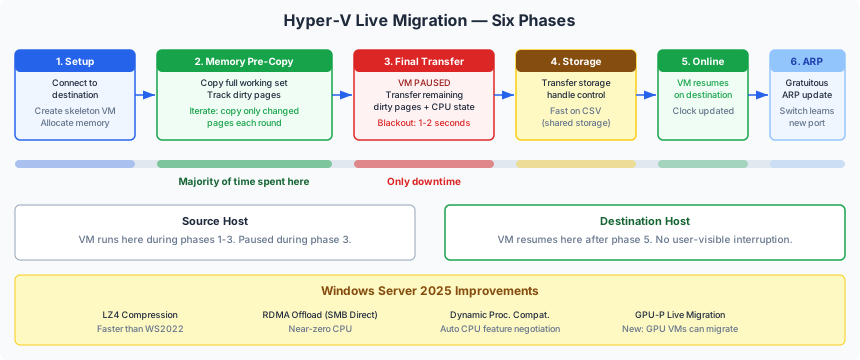
Live migration transfers a running VM from one host to another in six phases. Understanding each phase is the key to understanding what affects migration time and what can go wrong.
Phase 1: Setup
The source server establishes a connection to the destination server and negotiates the migration. The destination creates a skeleton VM , allocating memory, configuring virtual hardware, and preparing the virtual switch port. No VM state has moved yet.
What can fail here: Authentication failures (CredSSP or Kerberos delegation misconfigured), destination host doesn’t have enough memory to accept the VM, virtual switch name doesn’t match between source and destination.
Phase 2: Memory Pre-Copy (Iterative)
This is the core of live migration and where most of the time is spent.
The entire memory working set of the VM , every page assigned to the VM , is copied from source to destination over the migration network. While this copy is happening, the VM continues running on the source host. Hyper-V tracks which memory pages the VM modifies (dirties) during the copy using hardware-assisted dirty page tracking.
After the initial full copy, Hyper-V begins iterations. Each iteration copies only the pages that were modified since the previous iteration. Because fewer pages change in each successive interval, the set of remaining dirty pages shrinks with each iteration , the algorithm converges toward a small enough delta for the final transfer.
The convergence challenge: For VMs with high memory write rates , database servers under heavy transaction load, in-memory caching systems, large batch processing , the dirty page rate may be so high that the algorithm can’t converge. Each iteration produces nearly as many dirty pages as it copies. In extreme cases, migration may need many iterations or may stall.
Phase 3: Final Transfer (The Blackout Window)
When the dirty page set is small enough (or the maximum iteration count is reached), Hyper-V pauses the VM on the source and transfers the remaining dirty pages plus the CPU state, device state, and virtual hardware registers to the destination.
This is the blackout window , the brief period where the VM is not running on either host. Under normal conditions with a well-converged pre-copy, this is 1-2 seconds. Applications typically don’t notice because TCP connections tolerate brief pauses (the TCP keepalive timeout is much longer than 2 seconds).
When the blackout is longer: High dirty page rates, limited migration bandwidth, or source host under heavy CPU load can extend the blackout. Event ID 20417 in the Hyper-V-High-Availability log fires when the blackout exceeds expected duration (>63 seconds indicates a serious problem).
Phase 4: Storage Handle Transfer
Control of the VM’s storage , VHD files, virtual Fibre Channel connections , is transferred to the destination server. For VMs on Cluster Shared Volumes, this is fast because both hosts already have direct access to the same storage. For VMs on non-shared storage, a separate storage migration occurs (see “Shared Nothing Live Migration” below).
Phase 5: Online on Destination
The VM resumes execution on the destination host. From the VM’s perspective, nothing happened , it was paused briefly and resumed. The guest OS clock is updated, and the VM continues running.
Phase 6: Network Cleanup
A gratuitous ARP (Address Resolution Protocol) message is sent to the network switch to update the MAC-to-port mapping. This ensures network traffic is immediately routed to the correct physical port on the destination host. A reverse ARP is also sent to update upstream switches.
Windows Server 2025 Improvements
WS2025 brings significant live migration improvements that affect performance, compatibility, and operational simplicity.
Performance Options
Each Hyper-V host is configured with one of three migration performance options:
| Option | Mechanism | CPU Impact | Bandwidth | Best When |
|---|---|---|---|---|
| TCP/IP | Plain memory copy over TCP | Low | Uses available bandwidth, no optimization | Baseline , simple, always works |
| Compression (default) | Memory compressed before transfer (LZ4 in WS2025) | Moderate (compression uses CPU) | Reduced , compressed data is smaller | Network bandwidth is the bottleneck, CPU is available |
| SMB | Transfer over SMB 3.0 | Very low with RDMA | Full line-rate with RDMA | RDMA NICs available , best performance option |
SMB with RDMA (SMB Direct) is the performance winner. RDMA bypasses the TCP/IP stack entirely, transferring memory pages directly from host memory to NIC hardware. CPU overhead is near zero, and throughput approaches line rate. If your NICs support RDMA (iWARP, RoCEv2, InfiniBand), always use the SMB option.
Cluster-Wide SMB Bandwidth Control (New in WS2025)
WS2025 introduces cluster-level parameters for live migration bandwidth management:
SetSMBBandwidthLimit, sets the maximum SMB bandwidth for live migrationSetSMBBandwidthLimitFactor, sets bandwidth as a percentage of total node bandwidth (default: 25%)
This prevents live migration from saturating the cluster network and starving storage or heartbeat traffic. New nodes added to the cluster automatically inherit the cluster-wide setting , no per-node configuration required.
Dynamic Processor Compatibility Mode (New in WS2025)
Previous Windows Server versions offered a static processor compatibility mode that hid the last ~10 years of CPU instruction sets to enable migration between hosts with different processors. It worked but sacrificed performance.
WS2025 introduces dynamic processor compatibility mode for VMs with configuration version 10.0+. It automatically calculates the maximum common set of processor features across all cluster nodes and exposes that set to VMs. This provides:
- Better VM performance than static mode (more instruction sets available)
- Automatic recalculation when nodes join or leave the cluster
- No manual configuration required
- Always enabled and replicated cluster-wide
Limitation: Migration between Intel and AMD processors is still not supported. Dynamic compatibility works within the same vendor’s processor family.
GPU-P Live Migration (New in WS2025)
VMs with GPU partitioning (GPU-P) can now be live migrated between hosts. In WS2022 and earlier, GPU-P VMs were pinned to their host and could not be migrated. This is a significant improvement for VDI and AI/ML workloads that use GPU resources.
Additional WS2025 Improvements
- Workgroup cluster live migration , live migration now works in workgroup clusters (non-domain-joined), enabling smaller/edge deployments without Active Directory.
- Accelerated Networking (AccelNet) , simplifies SR-IOV management for VMs, reducing latency and CPU utilization during and after migration.
What Affects Migration Time
Understanding the variables that control migration time lets you predict and optimize.
The Core Variables
| Variable | Impact | What You Control |
|---|---|---|
| VM memory size | Directly proportional , more memory = longer initial copy | Right-size VMs; don’t over-allocate |
| Dirty page rate | Higher rate = more iterations, longer convergence | Workload-dependent; schedule migrations during low-activity periods |
| Network bandwidth | Inversely proportional , more bandwidth = faster transfer | Dedicated migration network, RDMA, bandwidth allocation |
| Compression | Reduces bandwidth requirement but adds CPU overhead | Enable when bandwidth-constrained, disable when CPU-constrained |
| Concurrent migrations | Multiple simultaneous migrations share bandwidth | Configure MaximumVirtualMachineMigrations per host |
| Source host CPU load | High CPU load slows dirty page tracking and compression | Avoid migrating during peak CPU utilization |
Estimation
Rough estimation formula:
Migration time ≈ (VM memory in GB) / (effective network throughput in GB/s) × overhead factor
The overhead factor accounts for iterations and dirty pages , typically 1.5-3x for moderate workloads, higher for write-heavy VMs.
Example: A 64 GB VM over a 10 Gbps migration network with compression:
- Effective throughput: ~1 GB/s with compression
- Base transfer: 64 seconds
- With 2x overhead factor: ~2 minutes
- Blackout: 1-2 seconds
Example: Same 64 GB VM over 25 Gbps RDMA:
- Effective throughput: ~2.5 GB/s
- Base transfer: 26 seconds
- With 1.5x overhead (RDMA is faster at iterations): ~40 seconds
- Blackout: <1 second
Shared Nothing Live Migration
When VMs are not on shared storage (no CSV, no SAN), Hyper-V performs a storage live migration alongside the memory migration. The VM’s virtual hard disks are mirrored to the destination over the network during the memory pre-copy phase. This significantly increases migration time because disk data (potentially hundreds of GB) must also be transferred.
Shared Nothing migration is useful for:
- Moving VMs between clusters that don’t share storage
- Migrating VMs from standalone hosts to clustered environments
- Emergency migrations when shared storage is unavailable
For routine production migrations, always use shared storage (CSVs) to avoid storage transfer overhead.
Troubleshooting Common Migration Failures
Authentication Failures
| Symptom | Cause | Fix |
|---|---|---|
0x8009030E (SEC_E_NO_CREDENTIALS) | CredSSP delegation not configured or Credential Guard blocking CredSSP | Switch to Kerberos constrained delegation (see Post 5) |
0x8009030D (SEC_E_UNKNOWN_CREDENTIALS) | Kerberos delegation not configured for both CIFS and Microsoft Virtual System Migration Service | Configure delegation for both SPNs in both directions |
| Kerberos changes not taking effect | Kerberos ticket caching (up to 15 min) | Run KLIST PURGE on both hosts, or wait |
Network Issues
| Symptom | Cause | Fix |
|---|---|---|
| “No available connection” | Migration network not configured | Run Set-VMMigrationNetwork with the correct subnet |
| Very slow migration | Using management network instead of dedicated migration network | Verify migration traffic uses the dedicated vNIC/VLAN |
| Post-migration connectivity loss | Mismatched subnets between source and destination | Ensure VM networks are available on both hosts |
Processor Compatibility
| Symptom | Cause | Fix |
|---|---|---|
| “Hardware on the destination computer is not compatible” | Different CPU features between hosts | Enable processor compatibility mode: Set-VMProcessor -CompatibilityForMigrationEnabled $true |
| Compatibility mode already enabled but still fails | Intel-to-AMD or AMD-to-Intel migration | Not supported , must be same vendor |
| Mismatched Spectre/Meltdown mitigations | Different microcode versions | Update microcode on all hosts to same version |
Storage Issues
| Symptom | Cause | Fix |
|---|---|---|
| Migration hangs or fails with storage error | ISO mounted from non-shared path | Remove ISO or mount from a shared path accessible by all nodes |
0x800705B4 timeout | Symbolic links left from a previous crashed migration | Clean up orphaned symlinks in VM storage path |
| “Cannot access VHD” | CSV not accessible on destination | Verify CSV is Online on all nodes: Get-ClusterSharedVolume |
Full troubleshooting scripts including pre-migration compatibility checks (
Compare-VM) and migration event log analysis are in the companion repository.
Live Migration Best Practices
| Practice | Why |
|---|---|
| Dedicated migration network | Prevents migration traffic from starving management or storage traffic |
| Use SMB with RDMA when available | Best performance , near-zero CPU, line-rate throughput |
| Limit concurrent migrations | Set-VMHost -MaximumVirtualMachineMigrations 2-4 , balance speed against network saturation |
| Schedule large migrations during off-peak | Lower dirty page rates = faster convergence |
| Use Kerberos, not CredSSP | Required for Credential Guard compatibility, more secure, supports cross-cluster migration |
| Keep CPU microcode consistent | Prevents processor compatibility blocks between hosts |
Test with Compare-VM before migrating | Identifies compatibility issues before you start the migration |
| Monitor Event ID 20417 | Alerts on extended blackout windows , indicates a convergence problem |
Next Steps
With live migration internals understood, the final post in the Production Architecture section scales everything up. In the next post, Post 16: WSFC at Scale, we’ll cover cluster sets, Cluster-Aware Updating, stretched clusters, anti-affinity rules, and the operational realities of running 64-node clusters with 8,000 VMs.
You know how VMs move. Time to understand how clusters scale.
Resources
- Series Repository: github.com/thisismydemo/hyper-v-renaissance
Microsoft Documentation
- Live Migration overview
- Virtual Machine Live Migration overview (phase details)
- Troubleshoot live migration issues
- Processor compatibility mode
- SMB bandwidth control for live migration
- What’s new in Windows Server 2025
Series Navigation ← Previous: Post 14 , Multi-Site Resilience → Next: Post 16 , WSFC at Scale