Management Tools for Production Hyper-V
WAC vMode, SCVMM, and the VMware-to-Hyper-V Management Map
In VMware, you had vCenter. One console, one login, everything managed , hosts, VMs, networking, storage, templates, live migration, HA, monitoring. You opened the vSphere Client and the entire virtualization fabric was in front of you.
So you’ve migrated to Hyper-V. You’ve built the cluster, connected the storage, moved the VMs. Now you sit down Monday morning and ask the obvious question: where’s my vCenter?
The honest answer: there isn’t a single tool that does everything vCenter does. There’s a toolbox , and the right combination depends on your scale. But the management landscape for Hyper-V has changed dramatically. Windows Admin Center is the management front end most organizations should evaluate first. Virtualization Mode (vMode) is Microsoft’s most direct attempt to close the vCenter-style gap, but because its release status, scale targets, and feature set are evolving, verify the latest Microsoft release notes before standardizing on it. SCVMM remains the enterprise option for organizations that need broader orchestration and Dynamic Optimization. And PowerShell , the constant through everything , can do things no GUI tool can.
In this eleventh post of the Hyper-V Renaissance series, we’ll map the VMware management experience to Hyper-V equivalents, go deep on each tool, and help you choose the right combination for your environment.
Repository: Management scripts, PowerShell remoting examples, and configuration templates are available in the series repository.
The VMware-to-Hyper-V Management Map
Before diving into individual tools, let’s answer the mapping question directly. If you had this capability in VMware, here’s where you find it in Hyper-V:
| VMware Capability | What It Does | Hyper-V Equivalent | Primary Tool | Cost |
|---|---|---|---|---|
| vCenter Server | Centralized multi-host/cluster management | WAC vMode or SCVMM | WAC vMode (free) / SCVMM (licensed) | Free / System Center license |
| vSphere Client | Web-based management UI | WAC | WAC (browser-based) | Free |
| vMotion | Live VM migration between hosts | Live Migration | FCM, WAC, SCVMM, PowerShell | Free (built into Hyper-V) |
| DRS | Automatic VM load balancing | SCVMM Dynamic Optimization | SCVMM only | System Center license |
| HA | Auto-restart VMs on host failure | Windows Server Failover Clustering | FCM, PowerShell | Free (built into Windows Server) |
| vSphere Templates | VM template library and provisioning | SCVMM Library / Sysprep + PowerShell | SCVMM or manual | Free (manual) / licensed (SCVMM) |
| Resource Pools | Hierarchical resource allocation | Per-VM resource controls | PowerShell, SCVMM | Free |
| Distributed Switch | Centralized virtual switch policy | SET + SCVMM Logical Switches | SCVMM for centralized | SET free / SCVMM licensed |
| Host Profiles | Standardized host configuration | PowerShell DSC / SCVMM | PowerShell (free), SCVMM | Free / licensed |
| Content Library | Shared ISO/template repository | SCVMM Library or file share | SCVMM or manual | Free (manual) / licensed |
| Alarms/Monitoring | Performance alerting | SCOM, Prometheus, Azure Monitor | See Post 9 | Varies |
Two things jump out from this table:
First, most of the underlying capabilities are free. Live Migration, WSFC HA, SET networking, per-VM resource controls , these are all included with Windows Server. What you’re choosing when you pick a management tool is the interface to these capabilities, not the capabilities themselves.
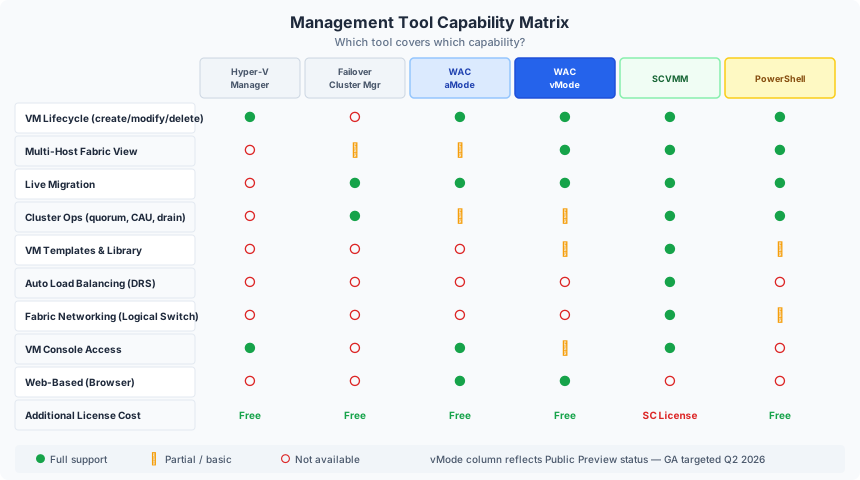
Second, there’s no single tool that covers everything vCenter does. The closest equivalents are WAC vMode (for free, web-based fabric management) and SCVMM (for enterprise features like DRS and distributed switching). Most environments use a combination. The rest of this post helps you decide which combination.
WAC Virtualization Mode , The Future of Hyper-V Management
WAC Virtualization Mode (vMode) is the most significant development in Hyper-V management in over a decade. Announced at Microsoft Ignite in November 2025 and currently in Public Preview with GA targeted for Q2 2026, vMode is a purpose-built management experience for Hyper-V infrastructure at scale.
This is not a minor WAC update. It’s a fundamentally different architecture designed to answer the vCenter question directly.
Important: Microsoft backported Network ATC to Windows Server 2022. vMode users managing WS2022 hosts can configure host networking through ATC the same way WS2025 users can. This is massive for VMware migrations where organizations landed on WS2022 and can’t immediately upgrade to WS2025.
What vMode Solves
Traditional WAC (Administration Mode) is a general-purpose Windows Server management tool. It connects to individual servers or clusters via WinRM, runs commands, and returns results. It’s stateless , it doesn’t maintain its own inventory or track changes over time. It works well for managing a handful of servers but wasn’t designed for fabric-scale virtualization management.
vMode changes the model entirely. It maintains a persistent inventory of your entire Hyper-V estate , hosts, clusters, VMs, networks, storage , in its own database. It uses lightweight agents on each host instead of stateless WinRM calls. It provides a single-pane-of-glass view across multiple hosts and clusters with a UI purpose-built for virtualization operations.
The numbers: A single vMode instance supports up to 1,000 hosts and 25,000 VMs. For context, that’s more than most vCenter deployments manage.
The price: Included with your Windows Server Datacenter or Standard license. Zero additional cost.
vMode Architecture
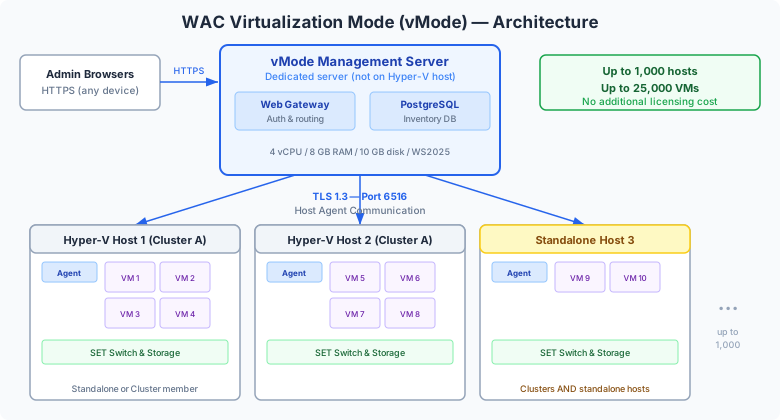
vMode runs as an appliance-style deployment on a dedicated management server:
| Component | Purpose |
|---|---|
| Web Gateway | Handles authentication, serves the browser UI, routes API requests |
| PostgreSQL Database | Built-in, auto-managed database that maintains persistent inventory of all hosts, VMs, and resources |
| Host Agents | Lightweight agents deployed to every managed Hyper-V host. Communicate via TLS 1.3 on port 6516 |
Key architectural differences from Administration Mode:
| Aspect | Administration Mode (aMode) | Virtualization Mode (vMode) |
|---|---|---|
| Communication | WinRM (stateless, per-request) | Host agents (persistent, TLS 1.3) |
| Inventory | None , discovers on each connection | PostgreSQL database (stateful) |
| Scale | Individual servers/clusters | Up to 1,000 hosts / 25,000 VMs |
| Resource organization | Per-server connection | Logical resource groups across fabric |
| Coexistence | Can run on shared server | Must be on dedicated server |
Prerequisites:
- vMode gateway: Domain-joined Windows Server 2025 (Standard or Datacenter)
- Managed hosts: Windows Server 2025 or Windows Server 2022 (N-1 OS support model)
- Dedicated server — cannot coexist with aMode WAC or run on a managed Hyper-V host
- Minimum 4 vCPUs, 8 GB RAM, 10 GB free disk
- DNS resolution via FQDN
- Same Active Directory domain as managed hosts
- Exactly one software prerequisite: Visual C++ Redistributable (one
wingetcommand) and one host requirement (SMB firewall rule). Everything else is handled by the installer. Compare that to VCF deployments that can take hours or days. - Setup completes in under 10 minutes
What You Can Manage Today
vMode’s Public Preview already provides substantial capabilities:
| Capability | Status |
|---|---|
| VM creation, modification, import, export | Available |
| Live migration between cluster nodes | Available |
| Bulk operations on multiple VMs simultaneously | Available |
| Hyper-V host settings and updates | Available |
| Virtual switch creation and configuration | Available |
| Affinity rule management | Available |
| Volume management | Available |
| GPU-P visibility | Available |
| Resource utilization dashboards | Available |
| Standalone host AND failover cluster management | Available |
| Global search across all resources | Available |
| Logical resource groups (production, lab, staging) | Available |
Network Intent Templates
One of vMode’s most operationally significant features is Network Intent Templates — Microsoft’s direct answer to vCenter Host Profiles and Distributed Switch policy consistency.
You define an abstract networking blueprint once: management intent, compute intent, storage intent, with specific overrides like Jumbo Frame sizes, DCB settings, and RDMA configuration. Then you apply that same template to every new host or cluster you onboard. Define once, reuse everywhere.
In Public Preview 2, templates persist between sessions. By GA, full CRUD operations (create, read, update, delete) are planned. If you manage multiple clusters with identical networking requirements, this eliminates the per-host configuration drift that has plagued Hyper-V deployments.
SAN Storage Wizard Automation
vMode’s Add Resource storage wizard automates what has historically been one of the most tedious parts of Hyper-V deployment: SAN LUN provisioning for clusters.
The wizard auto-discovers all SAN LUNs visible to your cluster nodes and categorizes them:
| Category | What It Means | Action |
|---|---|---|
| Ready | Already configured as CSVs | No action needed |
| Auto-configure | Raw LUNs ready for automation | vMode brings the disk online, initializes it, partitions it, creates the CSV, and enables CSV cache — all from one wizard page |
| Manual | Needs human decision | Presented for manual configuration |
For auto-configure disks: you provision a new LUN per cluster node from your SAN, point vMode at the cluster, and it handles everything from raw disk to production CSV. This is the kind of operational simplification that VMware admins expect and Hyper-V has historically lacked.
NAS/SMB Auto-Delegation for Live Migration
Historically one of the most painful manual steps in Hyper-V deployment. When using SMB file shares for VM storage, every cluster node needs proper SMB permissions AND constrained delegation configured in Active Directory for live migration to work. Getting this wrong means live migration silently fails — and debugging it is miserable.
vMode’s storage wizard auto-configures SMB file share permissions for all nodes needed for live migration AND auto-enables SMB constrained delegation in Active Directory — a one-click experience. If it can’t complete the delegation (insufficient AD permissions), it tells you exactly what’s missing rather than failing silently.
This alone eliminates one of the biggest VMware admin complaints about Hyper-V setup complexity.
Compute Onboarding Automation
vMode’s compute configuration handles the full Hyper-V host build-out in a single guided wizard:
Auto-installs:
- Hyper-V role
- Network ATC
- Data Center Bridging
- Failover Clustering
- MPIO (if SAN is detected)
- AD RSAT PowerShell
Auto-removes: All non-essential Windows features to reduce attack surface and minimize patching overhead.
For existing clusters: Handles node drain and rolling reboots automatically — you don’t need to manually drain nodes, install roles, and reboot one at a time.
The result is a sub-10-minute path from bare Windows Server to a fully configured, clustered Hyper-V host with networking, storage, and compute ready for VMs. That’s what the “sub-10-minute deployment” claim actually means in practice.
What’s Coming
The vMode roadmap includes capabilities that will close remaining gaps:
| Capability | Target |
|---|---|
| VM templates | Public Preview 2 |
| Hyper-V Replica integration (DR management) | Public Preview 2 |
| Persistent Network Intent Templates | Public Preview 2 |
| Dedicated Networking view | Public Preview 2 |
| Azure Arc integration | GA |
| SDN management tools | GA |
| Storage profiles (manage SAN/NAS/HCI devices directly) | GA |
| Network profiles (manage SDN components) | GA |
| Compute profiles (VM management experience) | GA |
| Full CRUD for Network Intent Templates | GA |
| Linked-mode HA for the gateway | Planned |
| VM-level RBAC | Planned |
| Auto-update: gateway updates automatically push agent updates to all managed hosts | Planned |
| Gateway self-update (PaaS-style self-maintaining appliance) | Roadmap |
Public Preview 2 is imminent. Microsoft’s latest WAC blog post (April 2026) confirms PP2 is dropping “very soon” with the features listed above. Evaluate against PP2, not PP1.
vMode vs. vCenter , Honest Comparison
| Capability | vCenter | vMode (Current Preview) | vMode (GA Roadmap) |
|---|---|---|---|
| Multi-host/cluster single pane | Yes | Yes (1,000 hosts / 25,000 VMs) | Yes |
| VM lifecycle management | Full | Available | Full with templates |
| Live migration | vMotion | Supported | Supported |
| DRS (auto load balancing) | Yes | No , use SCVMM | No , not planned |
| HA (auto VM restart) | vCenter HA | Handled by WSFC | WSFC |
| VM templates | Mature | Not yet | PP2 |
| Granular RBAC | Per-VM | Host/cluster level | VM-level planned |
| Distributed switching | vDS | No , use SCVMM Logical Switches | SDN planned |
| Web-based console | Yes | Yes | Yes |
| Licensing cost | VCF license ($$$$) | Free | Free |
Where vMode wins: Zero licensing cost, sub-10-minute deployment, native PowerShell integration, VM Conversion extension for VMware migration, Network Intent Templates for consistent host configuration, SAN/NAS storage automation, SMB delegation automation, automatic role installation with attack surface reduction, and it’s built specifically for Windows Server 2025 (with WS2022 support via N-1 model).
Where vCenter still leads: DRS-equivalent automation (requires SCVMM), VM-level RBAC (planned for vMode), mature template library (coming in PP2), and ecosystem maturity.
Partner Extensibility
vMode supports partner extensions specifically designed for virtualization workflows. These are separate from aMode extensions and purpose-built for the virtualization context:
- Self-service portals — Delegated VM provisioning for teams and departments
- Backup integration — Direct backup orchestration from the virtualization console
- Server hardware management — BIOS, firmware, BMC management inline with host operations
- Storage provisioning — SAN/NAS vendor-specific provisioning from the vMode UI
- Networking appliance management — Physical switch and firewall integration
This extensibility model means the partner ecosystem can build vMode-specific tools, not just generic WAC extensions. As vMode adoption grows, expect vendor-specific extensions from Dell, Lenovo, HPE, Pure, NetApp, and others.
Offline and Air-Gapped Extension Updates
Both vMode and aMode support offline extension installation — download extension packages from a connected machine and install them on your air-gapped vMode gateway. This matters for regulated environments (government, financial, healthcare) where the management server has no internet access.
Start Using vMode Now
vMode is in Public Preview with Public Preview 2 imminent — not yet supported for production workloads. But that doesn’t mean you should wait for GA to learn it. Deploy it in a lab or dev environment today:
- The architecture is different from anything you’ve used before (agents, PostgreSQL, dedicated appliance)
- The workflow for managing VMs, hosts, and clusters is new , get your muscle memory started
- You’ll discover any environmental prerequisites (DNS, domain, firewall) before production matters
- When GA ships, you’ll be ready to adopt immediately instead of starting from scratch
This is the future of Hyper-V management. Lean into it now.
Windows Admin Center , Administration Mode
While vMode matures, WAC Administration Mode (aMode) is the production-ready web management tool for Hyper-V today. WAC 2511, released in December 2025, is the latest GA version.
Deployment for Production
For production environments, deploy WAC as a gateway on a dedicated management server , not on your Hyper-V hosts, not on a domain controller. This gives your team browser-based access from any machine.
| Deployment Mode | Use Case |
|---|---|
| Desktop mode | Admin workstation, personal use, small environments |
| Gateway mode | Production , multi-user browser access on a management server |
| Gateway HA mode | Enterprise production , active-passive failover (restored in WAC 2511) |
Hyper-V Capabilities in aMode
When you connect to a Hyper-V host or cluster in WAC aMode, you get:
- VM management: Create, modify, start, stop, checkpoint, import, export
- Virtual switch management: Create and configure SET switches and VM network adapters
- Live migration: Migrate VMs within a cluster
- VM console access: Browser-based RDP connection directly to VMs (improved in 2511 with 30+ keyboard layouts)
- Performance dashboards: Real-time CPU, memory, disk, and network utilization for hosts and VMs
- Cluster overview: Node status, CSV health, cluster roles, quorum status
Extensions That Matter
WAC’s extension ecosystem adds vendor-specific and feature-specific capabilities:
| Extension | Publisher | What It Does |
|---|---|---|
| VM Conversion | Microsoft (Preview) | Online VMware-to-Hyper-V migration with replication , up to 10 VMs simultaneously. See Post 7. |
| NetApp Shift Toolkit | NetApp (Free) | Storage-assisted VM conversion across hypervisors, disk format conversion |
| Dell OpenManage Integration | Dell | Hardware management for PowerEdge servers (BIOS, firmware, iDRAC) |
| Lenovo XClarity Integrator | Lenovo | Hardware management for ThinkSystem servers |
| Security Baselines | Microsoft | CIS and DISA STIG compliance checking |
aMode Limitations
aMode is not a fabric management tool. It connects to individual servers or clusters, not a unified estate. There are no VM templates, no fabric-level networking (logical switches), no cross-cluster resource organization. For those capabilities, you need vMode (when GA) or SCVMM.
Think of aMode as the capable daily driver. vMode is the purpose-built fabric manager. They’re complementary, not competitors.
Failover Cluster Manager and Hyper-V Manager
The GUI tools that shipped with Windows Server haven’t gone away, and they still earn their place in certain workflows.
Failover Cluster Manager
Failover Cluster Manager (FCM) is the dedicated GUI for Windows Server Failover Clustering operations. It’s included with the Failover Clustering feature on server installs and available via RSAT on Windows 10/11 clients.
Where FCM is still the best tool:
| Operation | Why FCM |
|---|---|
| Quorum configuration | Detailed witness management , cloud witness, file share witness, disk witness , with visual confirmation |
| Node operations | Pause, drain, resume, evict with per-node control and real-time drain progress |
| CSV management | Ownership changes, maintenance mode, redirected I/O troubleshooting |
| Cluster-Aware Updating (CAU) | Orchestrated patching configuration and execution across cluster nodes |
| Resource dependency chains | Visual dependency editor for complex resource groups |
| Cluster network roles | Configure which networks carry heartbeat, client, and migration traffic (Role 0/1/3) |
| Cluster validation | Run and review Test-Cluster reports |
| Cluster event logs | Integrated view of cluster operational and diagnostic events |
WAC covers many of these operations, but FCM provides more granular control , especially for troubleshooting. When a CSV goes into redirected I/O mode at 2am and you need to understand why, FCM gives you the detail.
Hyper-V Manager
Hyper-V Manager is the basic MMC snap-in for Hyper-V host management. It’s included when the Hyper-V role is installed and available via RSAT on client operating systems.
What it’s good for: Quick ad-hoc VM management on a single host. Creating a VM, connecting to its console, taking a checkpoint, adjusting settings. It’s the quick screwdriver in your toolbox , useful for small jobs, not for building a house.
Limitations that matter:
- Single-host view , connects to one host at a time. You can add multiple hosts to the console tree, but you manage them individually with no aggregate view.
- No cluster awareness , doesn’t understand CSVs, failover groups, or cluster-level live migration.
- No bulk operations , every VM operation is one at a time.
- No templates or library management.
Hyper-V Manager is fine for environments with 1-3 hosts or for quick tasks on a specific host. For anything beyond that, use WAC, FCM, or PowerShell.
SCVMM , Enterprise Fabric Management
System Center Virtual Machine Manager (SCVMM) is the enterprise fabric management platform for Hyper-V. If WAC vMode is the vCenter equivalent for most environments, SCVMM is the vCenter + vRealize equivalent for large-scale, complex deployments.
What SCVMM Gives You That Nothing Else Does
SCVMM’s value proposition rests on four capabilities that no other Hyper-V tool provides:
1. Dynamic Optimization , The DRS Equivalent
Dynamic Optimization continuously monitors host CPU and memory utilization across your clusters and automatically live-migrates VMs to balance load. It also includes Power Optimization, which consolidates VMs onto fewer hosts during off-peak hours so you can power down unused servers to save energy costs.
This is the single most-requested vCenter feature that VMware admins ask about. Without SCVMM, load balancing is manual or scripted. With SCVMM, it’s automatic and policy-driven.
2. Logical Switches , The Distributed Switch Equivalent
SCVMM Logical Switches provide centralized, consistent virtual switch configuration across all hosts. You define the switch configuration once , uplink port profiles, virtual port profiles, VLAN settings, bandwidth policies , and SCVMM deploys it identically to every host. Changes propagate automatically.
Without SCVMM, each host’s SET switch is configured independently. For 5 hosts, this is manageable. For 50 hosts, it’s a consistency nightmare. Logical Switches solve that.
3. VM Library , Templates and Provisioning
The SCVMM Library provides a centralized repository for VM templates, hardware profiles, guest OS profiles, ISO images, and scripts. Template-based provisioning delivers consistent, repeatable VM deployments , complete with OS customization, domain join, and application installation.
Without SCVMM, template management is manual: Sysprep a VHD, store it on a share, script the VM creation. It works, but it doesn’t scale elegantly.
4. Self-Service Clouds
SCVMM Clouds provide delegated, capacity-bounded pools for departments or tenants. A cloud defines available compute, storage, and network resources with RBAC. Department admins can provision VMs within their cloud without needing access to the underlying fabric.
SCVMM 2025
The latest release includes:
- Default Generation 2 VM creation (UEFI-based)
- TLS 1.3 support with reduced NTLM/CredSSP dependency
- Faster VMware-to-Hyper-V VM conversion
- Storage QoS policies assignable to SANs
- vTPM management via GUI and PowerShell (UR1)
- Expanded Linux guest support: Ubuntu 24.04, RHEL 9, Debian 12/13, Oracle Linux 9, Rocky Linux 9
Infrastructure Requirements
SCVMM is not lightweight:
| Component | Requirement |
|---|---|
| Management Server | Dedicated Windows Server 2025 |
| SQL Server | Standard or Enterprise (separate server recommended for 150+ hosts) |
| Service Accounts | VMM service account, Run As accounts for host/fabric management |
| Library Server | File share for templates, ISOs, VHDs (can coexist with management server) |
| Console | Installed on admin workstations |
| Licensing | System Center 2025 core-based licensing (2-core packs, minimum 16 cores/server) |
For a production deployment, expect 2-3 dedicated servers (management + SQL + library). The System Center license adds cost on top of Windows Server licensing.
The Honest Assessment
Deploy SCVMM when:
- You have 20+ hosts and need consistent fabric management at scale
- You need DRS-equivalent automatic load balancing (Dynamic Optimization)
- You need centralized virtual switch policy across many hosts (Logical Switches)
- You have multi-tenant or self-service requirements (Clouds)
- You have existing System Center investment (SCOM + SCVMM + SCCM together)
- You’re managing VMware and Hyper-V simultaneously during migration
Don’t deploy SCVMM when:
- You have 2-10 hosts , WAC + FCM + PowerShell covers your management needs without the infrastructure overhead
- You don’t need DRS , manual or scripted load balancing is sufficient at smaller scale
- Budget is a constraint , the licensing and SQL Server infrastructure cost is real
- vMode will cover your needs , as WAC vMode matures, it will absorb many SCVMM use cases for organizations that don’t need Dynamic Optimization or self-service clouds
Don’t deploy SCVMM just because you had vCenter. Deploy it because your scale and operational requirements demand it.
PowerShell , The Universal Constant
Every tool in this post , WAC, FCM, SCVMM, Hyper-V Manager , is a graphical interface to operations that PowerShell can perform directly. PowerShell is the superset. There is no Hyper-V management operation that requires a GUI.
The Numbers
| Module | Cmdlets | Coverage |
|---|---|---|
| Hyper-V | 245+ | VM lifecycle, virtual hardware, networking, storage, replication, resource metering |
| FailoverClusters | 90+ | Cluster lifecycle, node management, CSV, quorum, CAU, cluster networking |
PowerShell-Only Operations
Some operations are PowerShell-only , no GUI tool exposes them:
- Setting vCPU count above 1,024 on Generation 2 VMs
- Configuring GPU-P partition sizes and assignments
- Advanced NUMA topology configuration
- Fine-grained VM resource metering and reporting
- Bulk operations across hundreds of VMs with custom logic
- Integration with CI/CD pipelines and automation platforms
Multi-Host Management Patterns
PowerShell remoting makes multi-host management natural:
# Parallel command execution across all cluster nodes
$Nodes = (Get-ClusterNode).Name
Invoke-Command -ComputerName $Nodes -ScriptBlock {
    Get-VM | Where-Object State -eq 'Running' |
    Select-Object Name, CPUUsage, @{N='MemGB';E={[math]::Round($_.MemoryAssigned/1GB,1)}}
}

# Persistent sessions for multiple operations
$Sessions = New-PSSession -ComputerName $Nodes
Invoke-Command -Session $Sessions -ScriptBlock { Get-VMSwitch }
Invoke-Command -Session $Sessions -ScriptBlock { Get-ClusterSharedVolume }
Remove-PSSession $Sessions
PowerShell isn’t the fallback when the GUI can’t do something. It’s the primary tool , the GUI is the fallback when you need a visual. This is what “PowerShell Returned to Its Throne” means.
Deep dive: Post 19: PowerShell Automation Patterns covers DSC for configuration management, module development, idempotent scripting, and CI/CD integration.
Azure Arc , Optional Hybrid Management
For organizations with Azure investment, Azure Arc extends management capabilities to on-premises Hyper-V infrastructure. This is optional , not required for on-premises management , and is covered in depth in Post 17: Hybrid Without the Handcuffs.
The key capabilities:
| Capability | What It Provides | Cost |
|---|---|---|
| Arc-enabled Servers | Azure Portal visibility, Azure Policy, Azure Update Manager, Defender for Cloud | $6/server/month (some features free) |
| Arc-enabled SCVMM | Full VM lifecycle management from Azure Portal with cluster awareness | Requires SCVMM + Arc Resource Bridge |
| WAC in Azure Portal | Remote WAC access through Azure without VPN | Free with Arc enrollment |
Arc-enabled SCVMM is worth noting: if you deploy SCVMM, Arc integration lets you manage VMs from the Azure Portal with full RBAC, template management, and cluster awareness. It’s the bridge between on-premises Hyper-V and Azure management for organizations that want a unified portal.
Choosing Your Management Stack
By Environment Size
| Environment | Recommended Stack | Why |
|---|---|---|
| 1-5 hosts | WAC aMode + Hyper-V Manager + PowerShell | Simple, free, sufficient for small environments |
| 5-20 hosts | WAC aMode + FCM + PowerShell. Test vMode in lab. | WAC for daily management, FCM for cluster ops. Evaluate vMode for future switch. |
| 20-50 hosts | WAC vMode (when GA) + FCM + PowerShell. Evaluate SCVMM. | vMode covers fabric management at this scale. Add SCVMM if you need DRS or templates. |
| 50+ hosts | SCVMM + WAC vMode + FCM + PowerShell | Full enterprise stack. SCVMM for DRS and fabric networking, vMode for daily ops. |
aMode vs. vMode: WAC Administration Mode is still a fully valid and production-supported tool today. However, Virtualization Mode is where Microsoft is investing for Hyper-V management going forward. Plan your path accordingly: use aMode in production now, evaluate vMode in your lab, and switch to vMode when GA lands. You run one or the other , not both.
By VMware Migration Stage
| Stage | What to Deploy |
|---|---|
| Evaluating Hyper-V | WAC aMode + PowerShell , zero cost to start |
| Building POC | WAC aMode + FCM , everything from Post 8 |
| Migrating VMs | WAC aMode with VM Conversion Extension , online migration from VMware |
| First production cluster | WAC aMode + FCM + PowerShell. Test vMode in lab. |
| Scaling out | Switch to WAC vMode (when GA) or add SCVMM depending on requirements |
The Decision That Matters
The real question isn’t “which tool should I use?” , it’s “do I need SCVMM?”
If you need Dynamic Optimization (DRS), Logical Switches (distributed switching), VM templates at scale, or self-service clouds , yes, deploy SCVMM. The licensing and infrastructure cost is justified.
If you don’t need those specific capabilities , WAC + FCM + PowerShell covers everything else, for free. And when WAC vMode reaches GA, it will cover fabric-scale management too.
Don’t overbuy management tools because VMware trained you to expect expensive management software. The capabilities are in Windows Server. The management interfaces are increasingly free.
Next Steps
With your management tools selected and deployed, you have the operational foundation to run your Hyper-V environment. In the next post, Post 12: Storage Architecture Deep Dive, we’ll go deep on advanced storage architecture , CSV internals (direct I/O vs. redirected I/O), storage tiering strategies, performance optimization, and protocol selection for different workloads.
You’ve got the keys to the kingdom. Time to understand what’s underneath.
Resources
- Series Repository: github.com/thisismydemo/hyper-v-renaissance
Microsoft Documentation , WAC
- WAC Virtualization Mode overview (preview)
- Installing WAC Virtualization Mode
- Introducing WAC vMode , Microsoft Ignite 2025
- WAC 2511 GA announcement
- VM Conversion Extension overview
WAC vMode Technical Blog Series (Microsoft Tech Community)
- Virtualization Mode Unlocked — Introduction and vision
- WAC Architectural Changes: 1-Mode, 2-Mode — aMode vs. vMode architecture
- vMode Preview Build Updated (PP2) — Public Preview 2 announcement
- Installing WAC: Virtualization Mode — Installation walkthrough
- Resource Onboarding in vMode — Add Resource wizard and N-1 OS support
- Configuring Network ATC in vMode — Network Intent Templates
- Configuring Storage in vMode — SAN/NAS automation and SMB delegation
- Configuring Compute in vMode — Role installation and cluster onboarding
Microsoft Documentation , SCVMM
Microsoft Documentation , PowerShell
Microsoft Documentation , Azure Arc
Series Navigation ← Previous: Post 10 , Security Architecture → Next: Post 12 , Storage Architecture Deep Dive