Storage Architecture Deep Dive
CSV Internals, Tiering Strategies, and the SAN Cost Advantage

Post 6 got your storage connected. This post explains how it actually works , and why the architecture decisions you make here determine whether your Hyper-V cluster performs like an enterprise platform or stumbles under load.
Storage is where the three-tier Hyper-V story gets strongest. Your existing SAN investment , the FlashArrays, the PowerStores, the NetApp filers , carries forward without additional storage licensing. No vSAN subscription. No S2D requiring identical disk configurations on every node. No platform fee just to connect storage you already own. The storage you already operate works with Hyper-V exactly as it worked with VMware: present LUNs, configure MPIO, format volumes, and build around proven operational patterns. The difference is what sits on top of it , and that’s what this post is about.
If the VMware renewal made you revisit the stack, and Azure Local looks attractive until the host subscription and potential hardware refresh hit the spreadsheet, this is the architectural middle ground that often wins: keep the storage you trust, change the hypervisor layer, and avoid paying twice for capabilities you already bought.
In this twelfth post of the Hyper-V Renaissance series, we’ll go deep on Cluster Shared Volume internals, storage protocol architecture, tiering design, and the cost case that makes three-tier Hyper-V the most economical path for organizations with existing SAN infrastructure.
Repository: Storage architecture decision tools, CSV troubleshooting scripts, and performance baseline templates are in the series repository.
Cluster Shared Volumes , How They Actually Work
Cluster Shared Volumes (CSVs) are the foundation of shared storage in a Hyper-V failover cluster. Every VM’s VHDX files live on a CSV. Understanding CSV internals is essential for performance optimization and troubleshooting.
The Basics
A CSV is an NTFS volume on a shared LUN (iSCSI, FC, or SAS) that’s added to the cluster and enabled as a Cluster Shared Volume. Once enabled, the volume is mounted at C:\ClusterStorage\VolumeN on every node simultaneously. All nodes can read and write to the same volume at the same time , that’s the “shared” in Cluster Shared Volumes.
But “shared” doesn’t mean “free-for-all.” CSVs use a coordinator model with two distinct I/O modes that dramatically affect performance.
Direct I/O vs. Redirected I/O
This is the most important concept in CSV architecture.
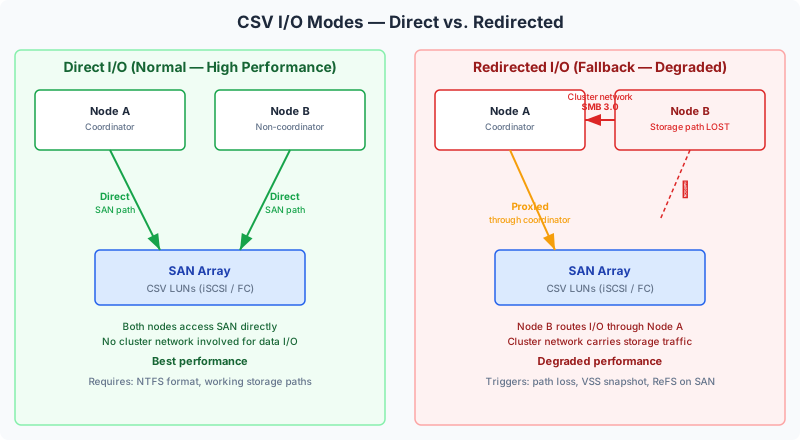
Direct I/O is the high-performance default. Each cluster node communicates directly with the SAN through its own storage paths (iSCSI sessions, FC ports). Reads and writes go straight from the node to the array without touching the cluster network. This is the mode you want for production workloads.
Redirected I/O occurs when a node loses its direct storage path. Instead of failing, the node routes its disk I/O over the cluster network (via SMB 3.0) to the coordinator node, which has a working storage path. The data reaches the array, but it takes a detour through another server and the cluster network.
There are two sub-modes of redirected I/O:
| Mode | Trigger | Impact |
|---|---|---|
| Block redirection | Storage connectivity loss on a node | I/O traverses the cluster network at block level. Faster of the two redirected modes. |
| File system redirection | VSS backup snapshot in progress, or manual placement | I/O redirected at the file system level. Temporary during backup operations. |
What triggers redirected I/O:
- Loss of storage connectivity on a node (iSCSI session drops, FC path failure)
- MPIO path failure on a node when no alternate paths remain
- VSS backup snapshot initiation (temporary , returns to direct after snapshot completes)
- Manual placement via
Set-ClusterSharedVolumeState
Performance impact: Redirected I/O adds cluster network latency and bandwidth consumption. A single node in redirected I/O can saturate the cluster network for all VMs on that CSV. Plan your cluster networks to handle this burst, and use SMB Multichannel and SMB Direct (RDMA) to mitigate the impact.
How to check:
Get-ClusterSharedVolumeState | Select-Object Name, Node, StateInfo, FileSystemRedirectedIOReason
Practical rule: For SAN-backed CSVs, validate the filesystem choice against current Microsoft guidance, backup tooling support, and your storage vendor’s recommendations. NTFS remains the conservative default for general-purpose SAN-backed CSV workloads because it avoids unpleasant surprises in mixed environments. ReFS can still be the right choice in specific designs, but don’t assume it is the universal default just because it is common in S2D and Azure Local conversations.
The Coordinator Node
Each CSV has one coordinator node , the node that owns the physical disk resource for that volume. The coordinator handles:
- Metadata operations: File creates, deletes, renames, and permission changes are serialized through the coordinator. These propagate across the cluster network via SMB 3.0.
- I/O arbitration: When conflicts arise (two nodes writing to the same file), the coordinator resolves them.
- Storage path management: The coordinator maintains the primary storage connection for the CSV.
Non-coordinator nodes perform data I/O directly to the SAN (in direct I/O mode) but route metadata operations through the coordinator. This means file-heavy operations (creating hundreds of small files) are more coordinator-sensitive than large sequential I/O.
Coordinator failure: If the coordinator node fails, the cluster elects a new coordinator from the remaining nodes. There’s a brief I/O pause during the transition , typically seconds , but no data loss. VMs experience a momentary freeze, then resume. Latency-sensitive applications (databases) may log a brief timeout.
Coordinator distribution: The cluster automatically distributes CSV ownership across nodes for balance. You can verify and adjust with:
Get-ClusterSharedVolume | Select-Object Name, OwnerNode
# Move ownership if needed for balancing
Move-ClusterSharedVolume -Name "Cluster Disk 1" -Node "HV-NODE-02"
CSV Cache
The CSV cache is a block-level, read-only cache that uses system RAM on each node. It caches frequently read blocks from the SAN, reducing storage I/O for read-heavy workloads.
| Setting | Details |
|---|---|
| Default size | 1 GiB per node (enabled by default in WS2019+) |
| Maximum size | Up to 80% of physical RAM (leave adequate memory for VMs) |
| Cache type | Read-only, unbuffered I/O |
| Best for | Read-intensive workloads (VDI boot storms, file servers, web servers) |
| Not helpful for | Write-heavy workloads (databases under heavy transaction load) , cache adds overhead |
# Check current CSV cache size (in MiB)
(Get-Cluster).BlockCacheSize

# Increase CSV cache to 2 GiB per node
(Get-Cluster).BlockCacheSize = 2048

# Changes require moving CSVs between nodes to take effect
Storage Protocol Architecture
Post 6 covered the basics of iSCSI, FC, and SMB3. Here we go deeper on the architecture implications of each protocol choice.
Protocol Comparison , Architecture View
| Attribute | iSCSI | Fibre Channel | SMB3 + SMB Direct (RDMA) |
|---|---|---|---|
| Transport | TCP/IP over Ethernet (10-100 GbE) | Dedicated FC fabric (32-64 Gbps) | TCP/IP or RDMA over Ethernet |
| Latency | Good; excellent with RDMA (iSER) | Excellent (lowest of block protocols) | Excellent with RDMA , rivals FC |
| CPU overhead | Moderate (TCP stack processing) | Low (HBA offload) | Very low with RDMA (kernel bypass) |
| Cost | Low (existing Ethernet infrastructure) | High (dedicated HBAs + FC switches) | Low (existing Ethernet + RDMA NICs) |
| CSV I/O mode | Direct I/O (NTFS) | Direct I/O (NTFS) | Always direct (file-level access) |
| MPIO | Required (iSCSI MPIO) | Required (FC MPIO with vendor DSM) | Built-in (SMB Multichannel) |
| Encryption | IPsec (rarely used) | FC switch-level | SMB encryption (AES-256-GCM) with minimal RDMA impact |
When Each Protocol Wins
iSCSI wins when: You don’t have existing FC fabric, budget matters, your Ethernet infrastructure is modern (10 GbE+), and you want simplicity. This is the right default for most organizations migrating from VMware.
Fibre Channel wins when: You have existing FC switches and HBAs, your workloads demand the absolute lowest latency, your storage team has deep FC operational experience, and the FC infrastructure is already amortized.
SMB3 wins when: You’re using file-based storage targets (Windows file servers, NetApp CIFS, Dell EMC), you have RDMA-capable NICs and want to leverage SMB Direct, or your workloads are VDI/file-server heavy. SMB3 also provides native encryption without external tools.
RDMA , The Performance Equalizer
RDMA (Remote Direct Memory Access) deserves special attention because it fundamentally changes the performance equation. With RDMA-capable NICs (iWARP, RoCEv2, or InfiniBand), SMB Direct bypasses the TCP/IP stack entirely, transferring data directly between server memory and NIC hardware. This provides:
- Near-zero CPU overhead for storage traffic
- Sub-microsecond latency
- Full line-rate throughput without host CPU bottleneck
- Works for both storage I/O (SMB3) and live migration traffic
With RDMA, SMB3 performance approaches or matches Fibre Channel at Ethernet prices. This is why SMB3 + RDMA is increasingly the recommended protocol for new Hyper-V deployments where the NIC hardware supports it.
Storage Tiering Design
Not all workloads need the same storage performance. Designing a tiered CSV layout allows you to match storage performance to workload requirements and manage costs.
Tiering Framework
| Tier | Workload Profile | Storage Recommendation | CSV Layout |
|---|---|---|---|
| Tier 1 , Performance | SQL databases, Exchange, latency-sensitive apps | All-flash LUNs, FC or RDMA-backed SMB3 | Dedicated CSVs, fewer VMs per volume |
| Tier 2 , General | Application servers, web servers, domain controllers | Hybrid or flash arrays, iSCSI with MPIO | Standard CSVs, moderate VM density |
| Tier 3 , Capacity | Dev/test, templates, file servers, archive | Capacity-optimized arrays, thin-provisioned | Shared CSVs, higher VM density |
CSV Layout Best Practices
| Practice | Why |
|---|---|
| One partition per LUN, one CSV per LUN | Simplifies management and eliminates partition-level contention |
| Minimum one CSV per cluster node | Distributes coordinator ownership for balanced metadata performance |
| Fewer VMs on Tier 1 CSVs | Reduces contention for latency-sensitive workloads |
| NTFS with 64KB allocation unit size | Optimized for large file I/O (VHDX files are large sequential) |
| Thin provisioning on the array | Reduces upfront allocation; WS2025 supports UNMAP/TRIM for space reclamation |
| Separate CSVs for high-churn VMs | Prevents a noisy neighbor from affecting other VMs during backup (VSS causes temporary redirected I/O) |
Thin Provisioning and UNMAP
Windows Server 2025 supports SCSI UNMAP on NTFS CSVs, enabling automatic space reclamation to thin-provisioned SAN LUNs. When you delete a VHDX file or a VM reclaims unused space inside a dynamic VHDX, the freed blocks are communicated back to the array via UNMAP, and the array reclaims the physical capacity.
This closes the loop on thin provisioning: the array allocates only what’s needed, and Windows returns what’s no longer needed. No manual storage reclamation required.
The Cost Case , Three-Tier SAN vs. VCF 9 vs. Azure Local
This is where the three-tier Hyper-V story becomes most compelling. For organizations with existing SAN infrastructure, the cost comparison isn’t even close.
The Storage Licensing Gap
| Platform | Compute License | Storage License | SAN Reuse |
|---|---|---|---|
| Hyper-V + SAN | Windows Server Datacenter (perpetual or SA) | None , SAN operates independently | Yes , existing investment carries forward |
| VCF 9 (Broadcom) | VCF subscription (per-core/year), 72-core minimum | vSAN included but capped at 1 TiB/core; overages are expensive | No , vSAN replaces external storage |
| Azure Local | Azure Local fee: $10/physical core/month | S2D included but requires Datacenter on every node + identical disk configs | No , S2D replaces external storage |
What This Means in Practice
Consider a typical environment: 4 hosts with 64 cores each, connected to an existing SAN with 50TB usable capacity.
Three-Tier Hyper-V:
- Windows Server 2025 Datacenter: ~$6,155/host (16-core perpetual license, scaled to 64 cores)
- SAN cost: $0 additional , you already own it
- Annual storage licensing: $0
VCF 9:
- VCF subscription: ~$140-180/core/year × 256 cores = ~$35,840-$46,080/year
- vSAN is included but replaces your SAN , your existing SAN investment is stranded
- 72-core minimum order applies
Azure Local:
- Azure Local fee: $10/core/month × 256 cores = $30,720/year
- Plus Windows Server guest licensing
- S2D replaces your SAN , existing investment stranded
- Requires Azure connectivity for billing
The existing SAN is the multiplier. If you already own enterprise storage, three-tier Hyper-V lets you use it. VCF 9 and Azure Local both strand that investment by replacing external storage with their own storage layer.
Deep comparison: For a comprehensive comparison of S2D, three-tier, and Azure Local , including when each approach makes sense , see Post 18: S2D vs. Three-Tier and When Azure Local Makes Sense.
A Brief Note on S2D for Hyper-V
Storage Spaces Direct (S2D) is a valid storage option for Hyper-V clusters, particularly for:
- ROBO and edge deployments , 2-node clusters with local storage, no SAN required
- New deployments without existing SAN , when you’re starting fresh and want hyperconverged simplicity
- Environments that value operational simplicity over storage flexibility
Limitations vs. SAN:
- Requires identical disk configurations across all nodes
- Requires Windows Server Datacenter edition on every node
- No independent storage scaling (add compute = add storage)
- No array-level data services (snapshots, clones, replication are array features)
- No vendor-agnostic SAN replication for DR
S2D has its place, but this series focuses on three-tier architecture with external storage because that’s where the strongest value proposition exists for VMware migration , reusing existing SAN infrastructure. Post 18 provides the full comparison.
CSV Troubleshooting Decision Tree
When storage problems occur in a Hyper-V cluster, the CSV layer is often involved. Here’s how to diagnose systematically:
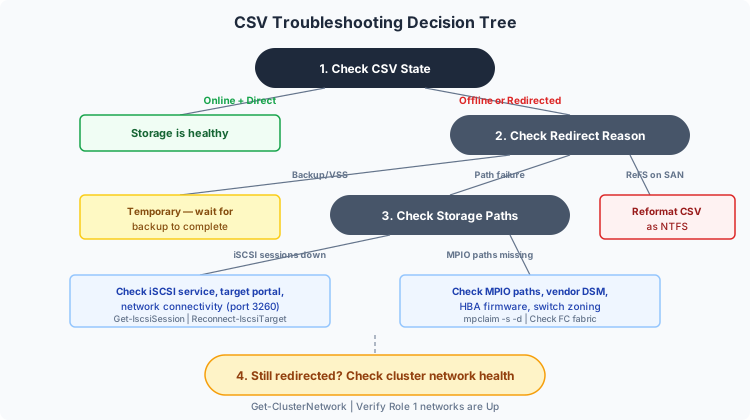
Step 1: Check CSV state
Get-ClusterSharedVolume | Format-Table Name, State, OwnerNode -AutoSize
Get-ClusterSharedVolumeState | Format-Table Name, Node, StateInfo -AutoSize
If State is not “Online” or StateInfo shows “FileSystemRedirected” , proceed to step 2.
Step 2: Identify the cause of redirection
FileSystemRedirectedIOReasontells you why: IncompatibleFileSystemFilter (backup agent), UserRequest (manual), IncompatibleReFSFilter (ReFS on SAN)- If the reason is backup-related, it’s temporary , wait for the backup to complete
Step 3: Check storage connectivity
# iSCSI sessions
Get-IscsiSession | Format-Table TargetNodeAddress, IsConnected -AutoSize
# MPIO paths
mpclaim -s -d
# Test storage network
Test-NetConnection -ComputerName "10.10.30.100" -Port 3260
Step 4: Check cluster network health
Get-ClusterNetwork | Format-Table Name, State, Role -AutoSize
Step 5: Check for coordinator issues If metadata operations are slow (file creation, VM startup), the coordinator node may be overloaded or have degraded storage connectivity. Move CSV ownership to a healthy node.
Full troubleshooting scripts with automated diagnostic collection are in the companion repository.
Performance Baseline Methodology
Before you can identify performance problems, you need to know what “normal” looks like. Establish baselines during normal operations.
Key Metrics to Baseline
| Metric | Source | What Normal Looks Like |
|---|---|---|
| CSV read/write latency | \Cluster CSV File System(*)\Read Latency / Write Latency | <5ms excellent, 5-10ms normal, >10ms investigate |
| CSV IOPS | \Cluster CSV File System(*)\Reads/sec / Writes/sec | Workload-dependent , establish your baseline |
| CSV throughput | \Cluster CSV File System(*)\Read Bytes/sec / Write Bytes/sec | Proportional to workload |
| CSV redirected I/O | Get-ClusterSharedVolumeState | Should always be direct I/O in steady state |
| MPIO path count | mpclaim -s -d | Should match expected paths (typically 2-4) |
| Per-VM storage latency | \Hyper-V Virtual Storage Device(*)\Latency | <5ms for Tier 1, <10ms for Tier 2 |
Baselining Process
- Collect metrics for 1-2 weeks during normal operations using Performance Monitor Data Collector Sets or your monitoring platform (Post 9)
- Identify peak hours and correlate with business activity
- Document the baseline per CSV and per workload tier
- Set alert thresholds at 2x baseline for warning, 3x for critical
- Review baselines quarterly as workloads evolve
Baseline collection scripts and Data Collector Set templates are in the companion repository.
Next Steps
With storage architecture understood , CSV internals, protocol selection, tiering design, and the cost case , the next step is ensuring your data is protected. In the next post, Post 13: Backup Strategies for Hyper-V, we’ll cover the backup landscape from Veeam and Commvault to HYCU and Azure Backup, with honest assessments of each and RPO/RTO planning frameworks.
Your storage is performing. Time to make sure it’s recoverable.
Resources
- Series Repository: github.com/thisismydemo/hyper-v-renaissance
Microsoft Documentation
- Cluster Shared Volumes overview
- Use the CSV in-memory read cache
- SMB Direct overview
- Failover Clustering hardware requirements
- Thin Provisioning and UNMAP overview
Related Posts
- Post 6: Three-Tier Storage Integration , basic storage connectivity
- Post 14: Multi-Site Resilience , storage-level replication
- Post 18: S2D vs. Three-Tier and Azure Local , full platform comparison
Series Navigation ← Previous: Post 11 , Management Tools for Production → Next: Post 13 , Backup Strategies for Hyper-V